
Merging Duplicate Student Accounts
Welcome to our guide on the Merge Students tool! This feature is designed to help administrators efficiently combine duplicate student accounts while ensuring that all important data remains intact. In this article, we will walk you through the process of merging accounts, what to preserve, and some best practices to follow.
When Duplicates Occur
Duplicate student accounts can arise for several reasons, including:
Parents creating multiple accounts for the same student
Guardians registering separately for the same student
Students attempting self-registration, leading to duplicate entries
Accessing the Merge Interface
To access the Merge Students tool, follow these simple steps:
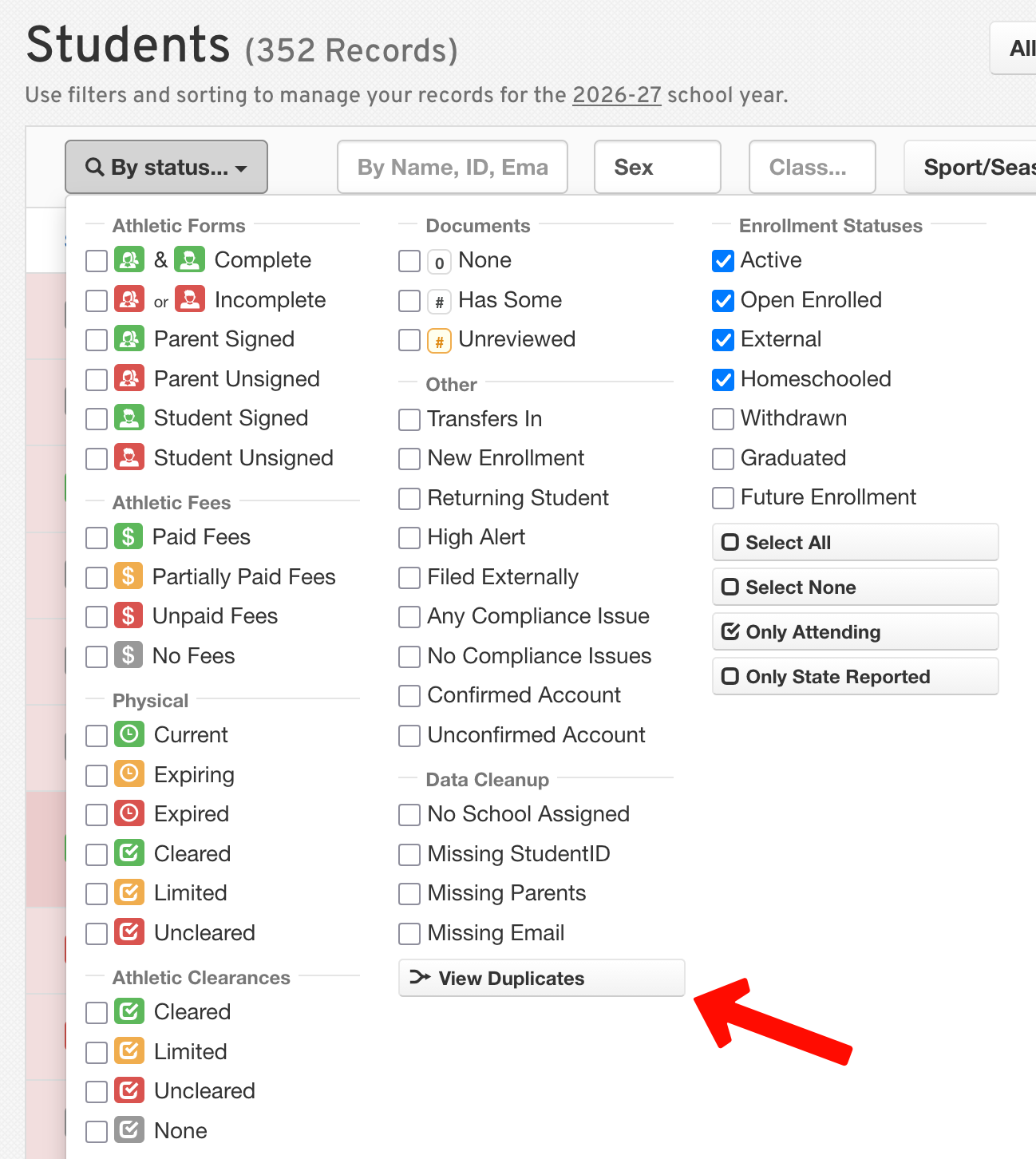
Go to Manage > Students.
Open the dropdown menu.
Select View Duplicates.
This feature requires administrative permissions. If you don't see the View Duplicates button, contact a Super Admin in your district to update your permissions.
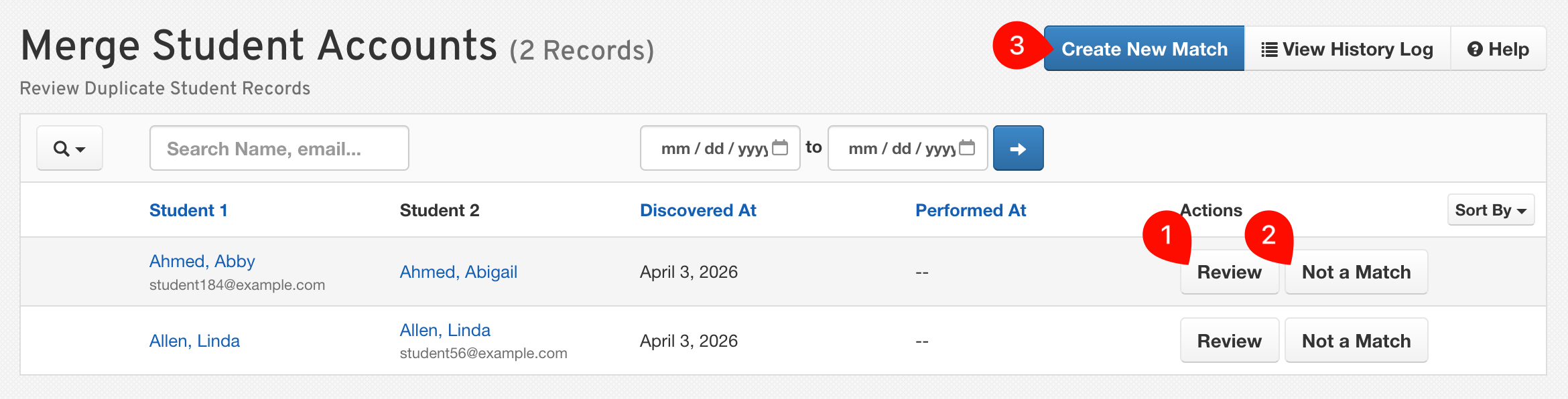
FinalForms automatically detects most duplicates and adds them to the Merge Interface.
Review - Begin the merging process.
Not a Match - Remove the duplicate from the list.
Create New Match
What do I do if no duplicate is detected?
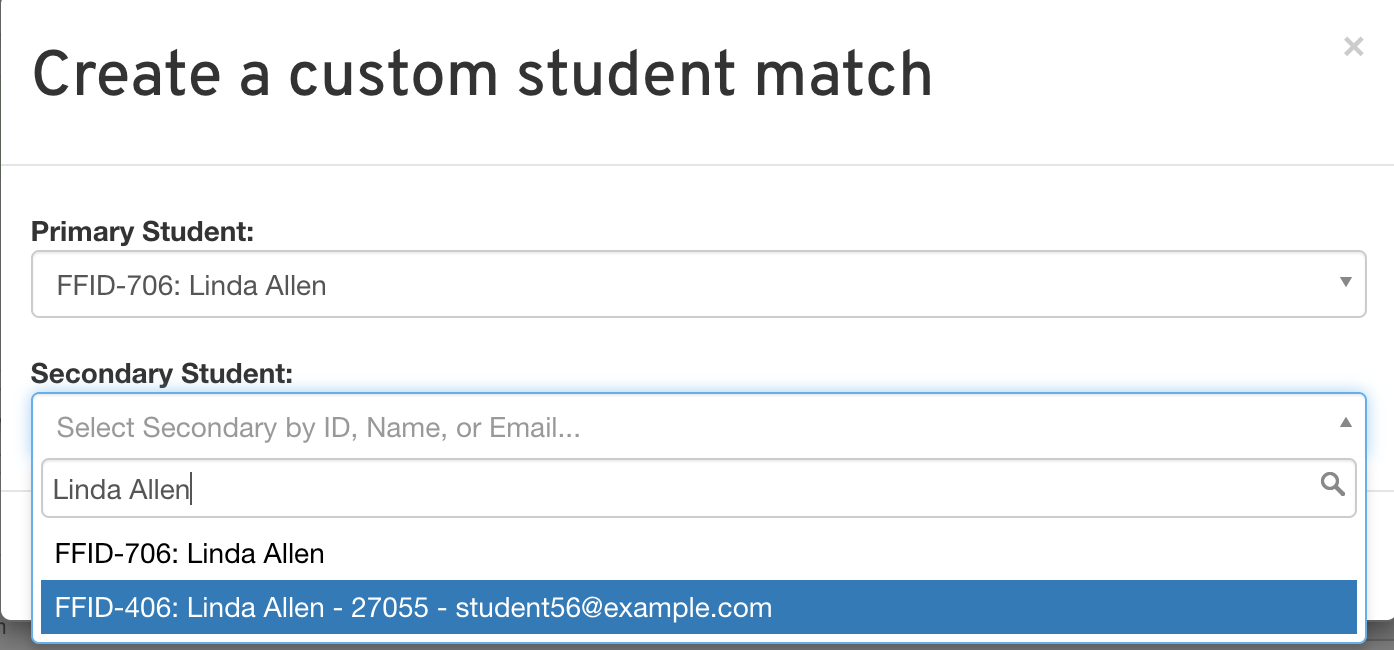
FinalForms detects most duplicates, but it may miss records for the same student. In such cases, click the Create New Match button at the top of the merge interface. You can then search your student database by ID, name, or email to find the records to merge, which will be added to the list.
How Merging Works
The merging process is straightforward and involves the following steps:
Review the suggested duplicate pairs.
Select a Primary Account, which is usually the most complete one.
Choose which data you would like to retain.
Confirm the merge.
Keep in mind that merges are permanent and cannot be undone, so please proceed with caution!
What Is Preserved
During the merge process, FinalForms ensures that the following data is retained:
Documents associated with the student
Parent connections to the student account
Sports, activities, and group assignments linked to the student
Best Practices
To ensure a smooth merging process, consider the following best practices:
Always choose the account with the most recent signatures to retain the latest information.
Merge one account at a time to avoid confusion.
Review the results after each merge to ensure accuracy.
Related Articles
For more information, check out these related articles:
We hope this guide helps you navigate the Merge Students tool with ease. If you have any questions or need further assistance, feel free to reach out to our Support Team!