
Import Sports or Assign Coaches
Welcome to our guide on bulk management through CSV imports! This feature is designed to streamline your workflows, making it easier to manage large datasets efficiently. Below, you'll find information on the available imports and important notes.
Available Imports
Mass Create Sports
Mass Assign Coaches
Import Past Rosters
How to import
Click Manage > Sports.
Click the Import button and select from:
Create Sports
Assign Coaches
Import Past Rosters
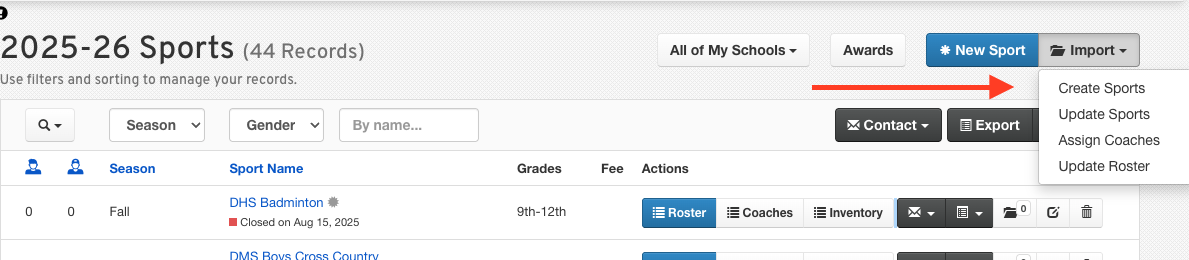
Under Instructions, click the Download Example CSV button to obtain the templated CSV file. Open the file using your preferred spreadsheet application.
Enter your import data into the spreadsheet, making sure the required fields are completed.
Delete the example row from the top of the spreadsheet.
Save/export the file in CSV format, then return to the corresponding page.
On the Import page, click the Choose File to Import button to upload your CSV file from its saved location.
Once the CSV file has been uploaded, the import will begin processing for your final review.
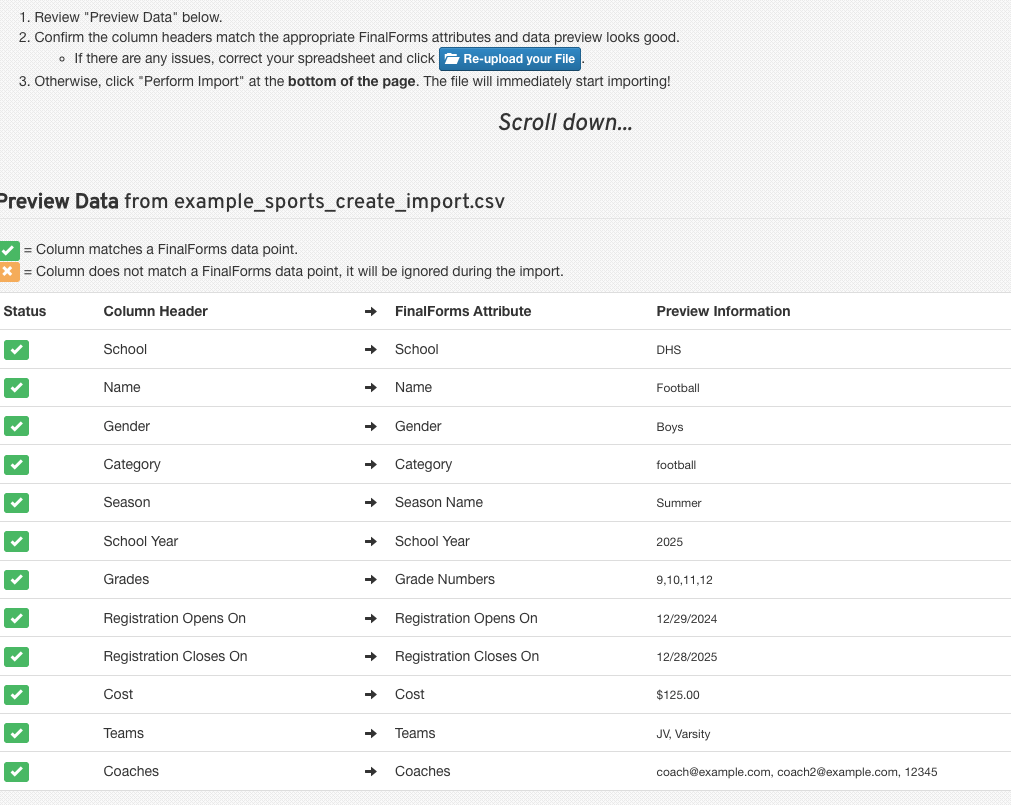
The Preview Data From will confirm all entries:
Make sure the Status column has a green checkmark for each column header
Fields that do not match FinalForms data points and will be ignored during the import.

Make any corrections, re-save the CSV, and use it to restart the import.
If everything shows as a green check mark, click Perform import at the bottom of the page.
While import runs, do not close the import page until the import is 100% complete.
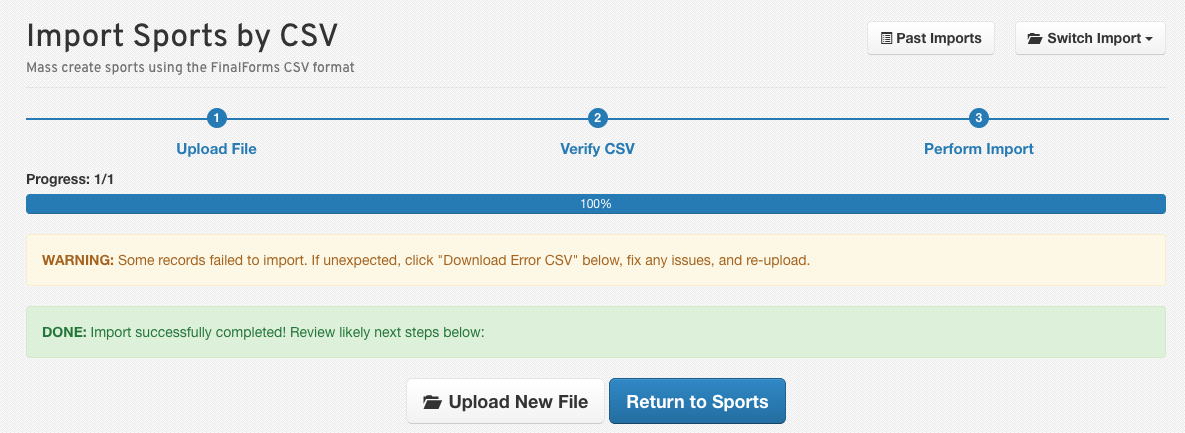
When finished, if any errors occurred, click the Download Error CSV to make corrections and try again from that specific error file.

OR click to restart the process with a new, separate CSV file.
If any error messages persist during import, we recommend sharing the error CSV download with FinalForms Support to help us troubleshoot.
Important Notes
Imports can overwrite existing data, so please proceed with caution.
Coach emails must match existing FinalForms accounts to ensure proper assignment.
Students can be identified by their Student ID, email, or date of birth (DOB).
By following these guidelines, you can effectively manage your data using CSV imports. If you have any questions or need further assistance, feel free to contact the FinalForms Support Team.