
Export Sports Reports
In this article, we will explore the export options available to you to help you manage your sports data efficiently.
The primary purpose of our export feature is to help you generate comprehensive reports and spreadsheets to support effective management of your sports programs.
Available Exports
FinalForms offers a variety of export options to suit your needs. Here's a list of the available exports:
Sports List
Rosters (Simple / Full)
Dropped Athletes
Multi-Sport Athletes
Roster & Award History
To access the various export options, follow these steps:
Click Manage > Sports.
Before exporting data, you have the option to filter the information to include only certain subsets of sports. For example, you can filter by season, gender, sport name, or school.
Click the Reports button and make your selection.
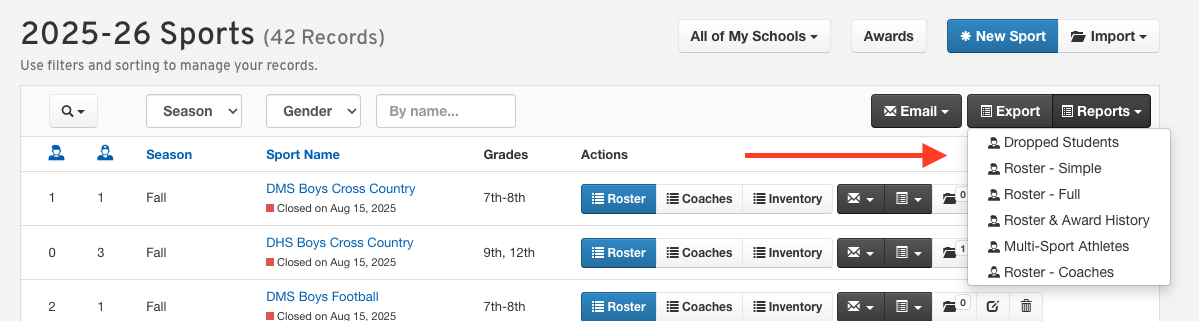
Here is a list of how to access various sports exports:
Export Sports
Click Manage > Sports.
Set any filter options (i.e., school, gender, season, grade).
Click the Export button.
Your export will run in the background, and an email will be sent when it's ready.
Open the downloaded spreadsheet containing all information for your filtered list of sports.
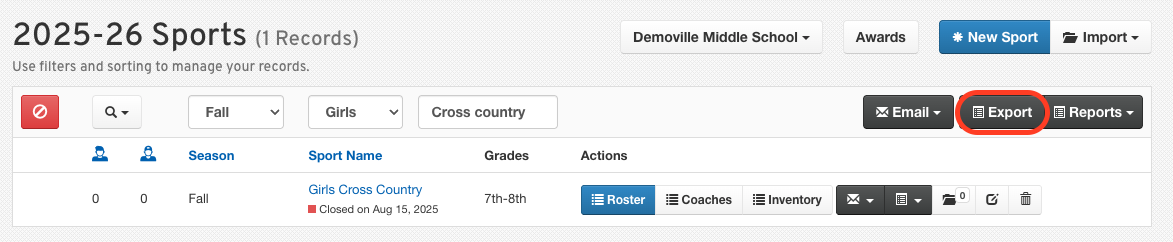
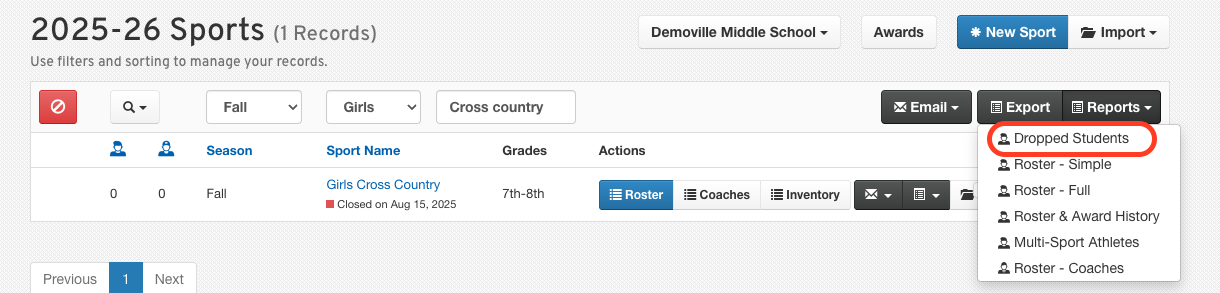
Dropped Athletes:
Click Manage > Sports.
Set any filter options (i.e., school, gender, season, grade).
Click the Reports button and select Dropped Athletes.
Your export will run in the background, and an email will be sent when it's ready.
Open the downloaded spreadsheet of all students who have been cut from at least one of the filtered sports. Students will appear on the spreadsheet once for each time they were cut from a sport.
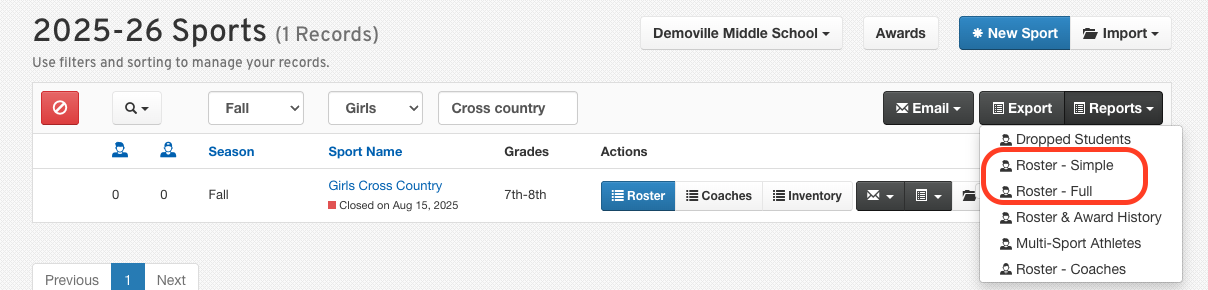
Rosters:
Click Manage > Sports.
Set any filter options (i.e., school, gender, season, grade).
Click the Reports button and select Rosters - Full or Rosters - Simple.
Your export will run in the background, and an email will be sent when it's ready.
Open the downloaded spreadsheet of all rostered students in the filtered sports.
Rosters & Award History:
Click Manage > Sports.
Set any filter options (i.e., school, gender, season, grade).
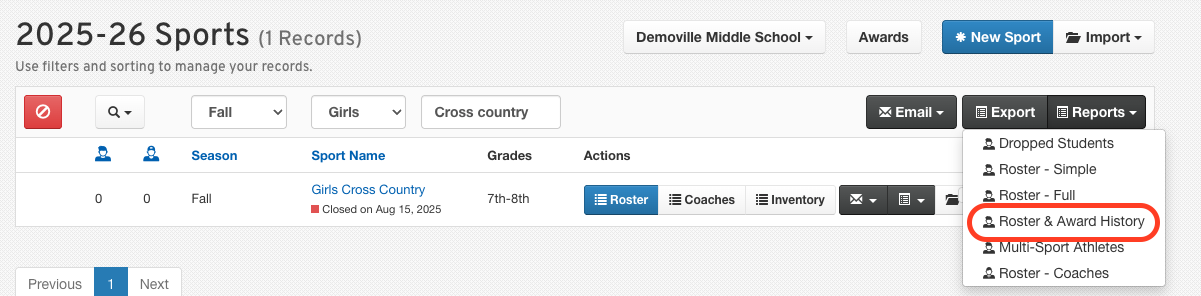
Click the Reports button and select Rosters & Award History.
Your export will run in the background, and an email will be sent when it's ready.
Open the downloaded spreadsheet of all rostered Students for the filtered sport, and their roster/award information from past years for that sport.
Multi-Sport Athletes
Click Manage > Sports.
Set any filter options (i.e., school, gender, season, grade).
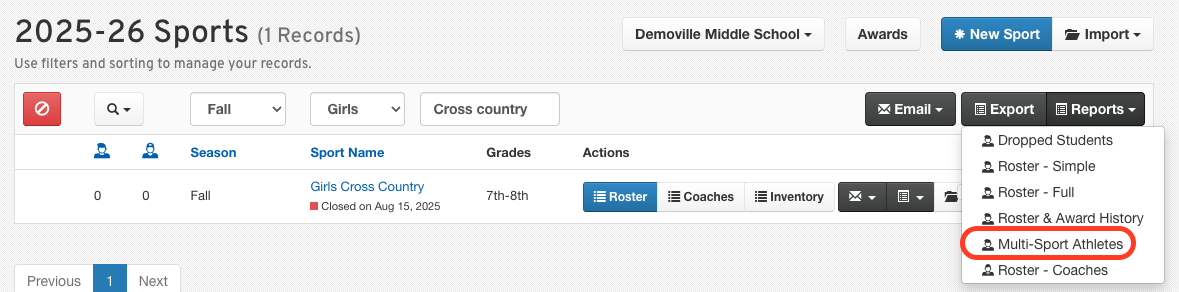
Click the Reports button and select Multi-Sport Athletes.
Your export will run in the background, and an email will be sent when it's ready.
Open the downloaded spreadsheet of all rostered students who are on the filtered sports and on at least one other sport this year.
Tip for Quick Access
For your convenience, exports can be run globally or directly from a specific sport row. This provides quick access to the data you need.
We hope this guide helps you make the most of our export features. Happy exporting!