
How Do I Assign Teams?
Welcome to our guide on managing sports teams and rosters! In this article, we will walk you through the steps to assign teams, cut students, view cut students, and add any student to a sport roster. Let's get started!
Assigning Teams
To assign teams to rostered students, follow these simple steps:
Click on Manage > Sports.
Select the Roster for the sport you wish to manage.
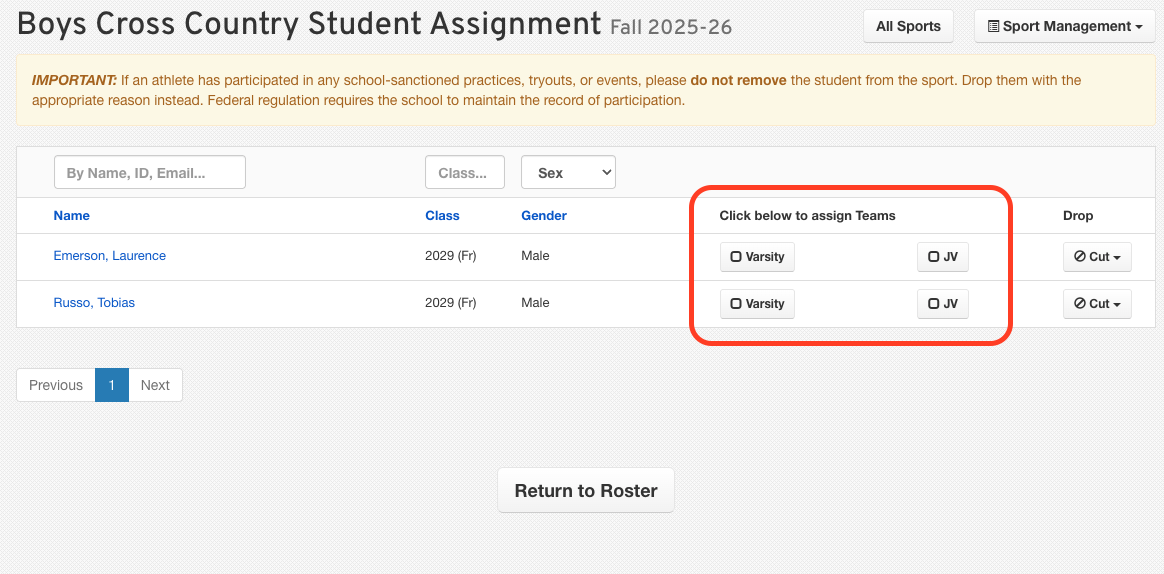
Click on the Assign Teams button above the student list. (Note: If the sport has no teams, this button will be hidden.)
Check the appropriate boxes to designate the teams to which each rostered student should be assigned or from which they should be removed.
Your selections are saved automatically, so you can click Return to Roster when you are finished.
Cutting Students
During the season, students may stop participating in a sport for various reasons, such as being cut, quitting, or moving away. It's important to maintain a record of their participation, but they should not remain on the active roster. Regardless of the situation, the student should be marked as Cut. Here's how to do it:
Click on Manage > Sports.
Select the sport's record.
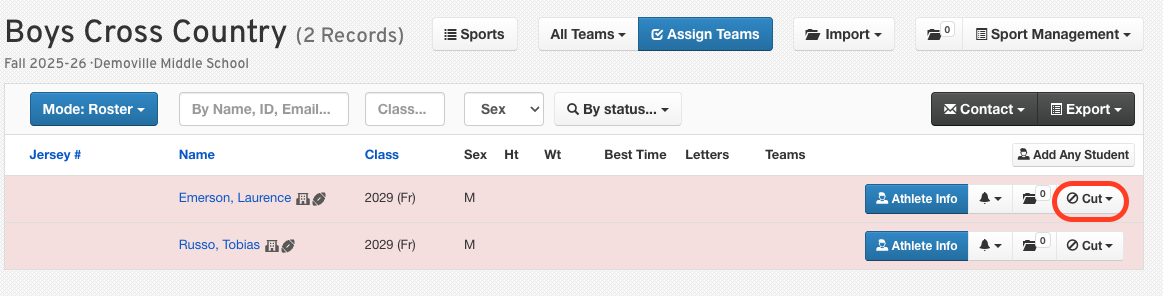
Click Roster and select Roster Mode.
Click the Cut button and select the applicable reason from the dropdown box.
A banner message will appear at the top of the page, confirming the student's removal from the roster and the selected reason.
Viewing Cut Students
To view students who have been cut from the Roster, follow these steps:
Click on Manage > Sports.
Select Roster for the sport's record.
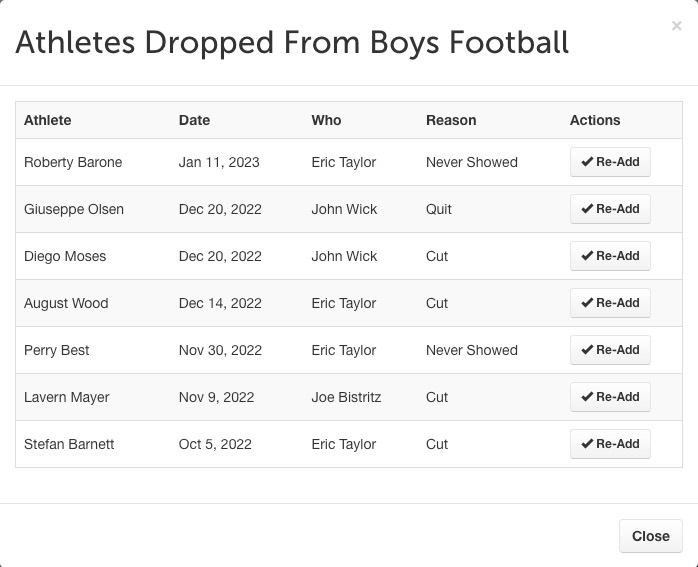
Click Sports Management dropdown and select Dropped Athletes.
A pop-up will appear listing all students who have been cut from the roster.
Uncutting Students
To uncut a student, you can do the following:
On the Dropped Athletes pop-up, click Re-Add on the appropriate student.
Alternatively, navigate to the student's profile and click on the relevant sport in the Sport History table.
Adding Any Student to a Sport Roster
Want to add any student to a sport or activity, regardless of their grade, gender, or school? Here's how:
Click on Manage > Sports.
Click Edit on the sport's record.
Click Add Any Student.
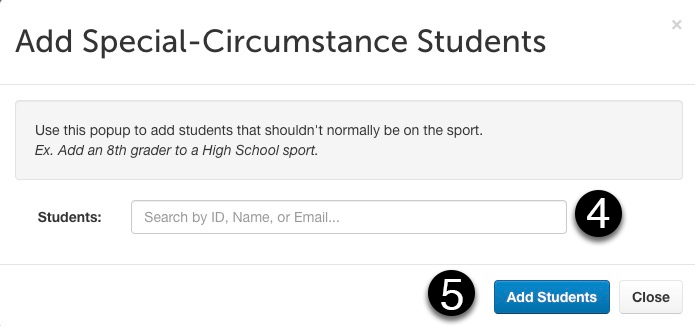
Search for the student in the Students input (Search by Name, ID, or Email. This can also be done for multiple students at once.)
Click Add Students.
Once done, you can repeat the Assign Teams process to add the student to a specific team.
We hope this guide helps you manage your sports teams and rosters effectively! If you have any questions, feel free to reach out to our Support Team for assistance.