How Do I Record A Credit Card Payment?
Follow these simple steps to record a credit card payment for a student:
Click on Manage > Students.
Locate the student you want to manage, then click the Payment icon in that student's row.
In the pop-up that appears, scroll to the bottom and click Checkout.
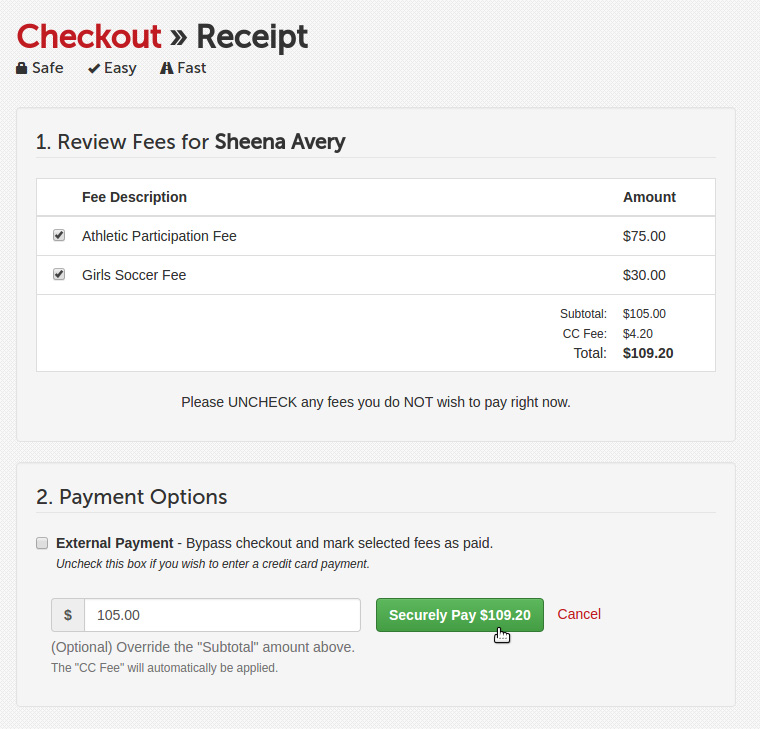
Ensure that only the fees you want to pay are selected.
Uncheck the option labeled External Payment.
(Optional) If you need to charge a different amount, modify the total amount to be paid.
Click Securely Pay to submit a credit card payment for processing.
What Happens Next?
Once you have successfully recorded the payment, the student's Payment icon will turn green on the appropriate sport or activity roster. This visual cue indicates that the payment has been processed.
Receipt Confirmation
A receipt for the external payment will be sent to your email address, ensuring you have a record of the transaction for your files.
And that's it! You've successfully recorded a manual payment. If you have any questions or need further assistance, feel free to contact our Support Team!