Can I Filter Payments?
Welcome to our guide on filtering students by statuses in FinalForms! This feature allows you to easily manage and view student information based on various criteria. Whether you're looking to filter by school, payer, or specific date ranges, we've got you covered. Let's dive into the details!
Filter Students by Statuses (Combinable!)
To get started, click Manage, then select Students from the menu.

Filter by School
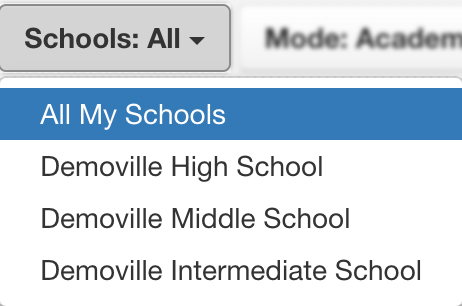
Choose from one of three options to filter students by school:
School: Select a specific school.
School Level: Filter by school level (high, middle, intermediate, or elementary). For example, you can select All Middle Schools.
All My Schools (default): This option includes students who are not assigned to any specific school.
2. Filter by Payer
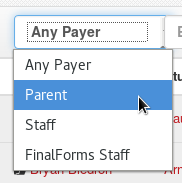
Filter students based on the type of payer:
Parent: Payments made by parents through online Stripe payment transfers.
Staff: Payments entered by staff members.
FinalForms Staff: Payments made by FinalForms staff accounts, typically external payments.
3. Filter by Name
Type in part of a student's name to find all payments associated with matching students.
4. Filter by Transfer Range
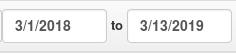
Enter a start date and an end date (format: MM/DD/YY or MM/DD/YYYY) to find all payments made within that specified range.
Note: For external payments, the date range captures any payments posted by an administrator on FinalForms. For payments processed through FinalForms, the transfer range displays all bank transfers made within that range. Remember, for each transfer to your bank, you will need to filter payments collected on the business day two business days prior.
5. Filter by a Preset Transfer Range
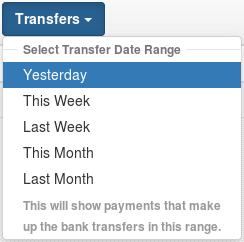
Select a predefined range of time to find all payment transfers within that range. The system will automatically handle the calculations for you, skipping weekends and holidays.
With these filtering options, managing student payments and statuses in FinalForms has never been easier! If you have any questions or need further assistance, feel free to contact our Support Team.