
How Do I Reconcile Nightly Transfers?
To successfully transfer payments to your bank, you will need to filter the payments collected on the business day that is two business days prior. Here's how to do it:
First, navigate to the Payment History section:
Click on Manage > Payment History.
Next, you will need to enter the appropriate date range:
Enter the start and end dates for the business day in the date filters.
Alternatively, you can select a Transfer range (see Payment Filters for more details).
When you enter the same date, the system will search for payments made between 5 p.m. EST the day before and 5 p.m. EST on that date. For example, if you are looking for payments on July 2, 2018, the search will cover the period from 5 p.m. EST on July 1, 2018, to 5 p.m. EST on July 2, 2018.
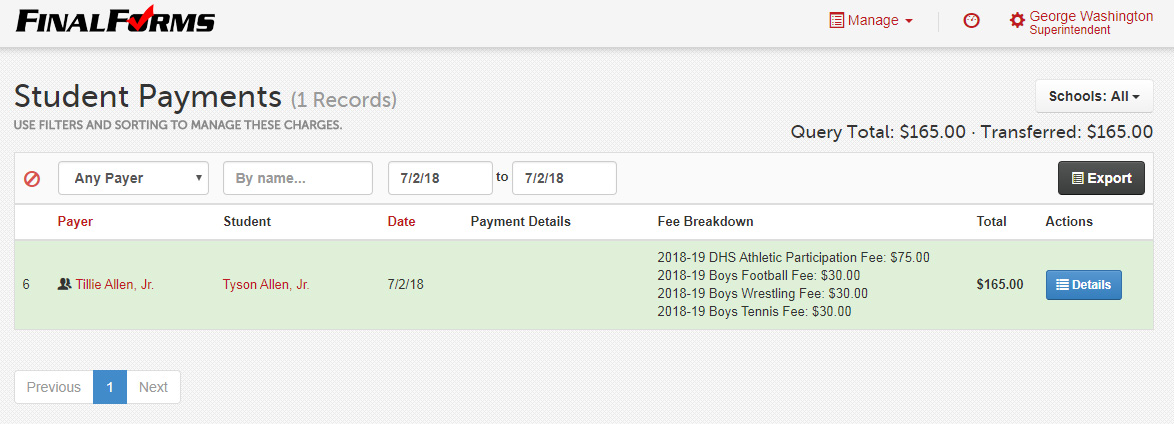
Verifying Transferred Amount
Once you have filtered the payments, check the Transferred amount in the top-right corner. This amount should match what was transferred to the school's bank account on July 5, 2018. Please note that it would typically be on July 4, 2018, but that date is a federal holiday.
Helpful Tip
To make your life easier, use the dropdown menu to automatically select common date ranges, such as Yesterday or Last Week. This feature handles date calculations for you!
Important: In banking, a business day starts and ends at 5 p.m. EST on non-holiday weekdays. This means:
Some payments may appear to be on the same day, but if some happen before and some after 5 p.m. EST, they are paid on different business days.
Some business days span more than 24 hours. Example: The business day before Labor Day starts at 5 p.m. Friday and ends at 5 p.m. Tuesday (after Labor Day). It spans 72 hours.