
Updating a Medical Report
There are two types of medical report updates: a Quick Update and a Full Update (Edit). Medical Reports display updates below the Previous Updates header.
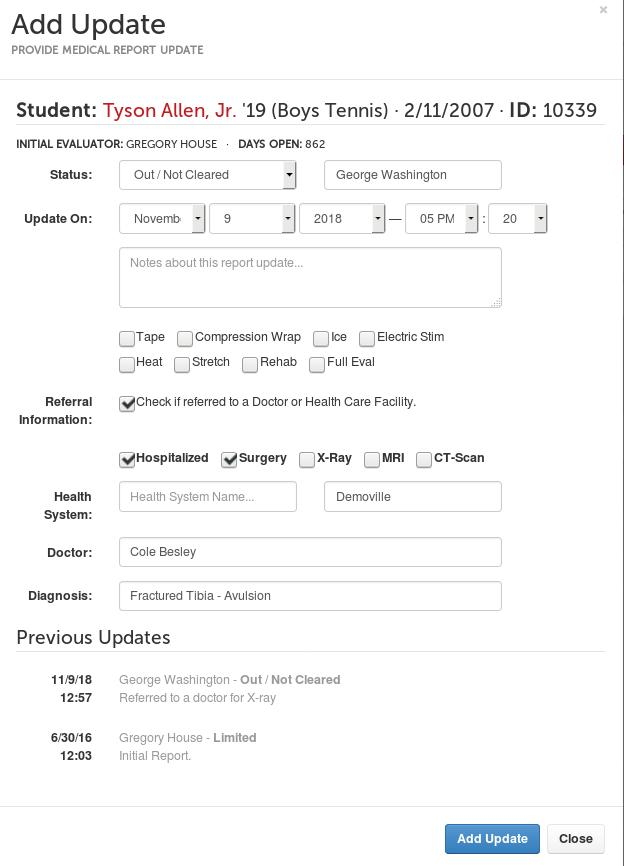
Quick Update
Quick updates allow users to record check-ups and treatments.
Click Manage > Medical Reports.
Click the +Quick Update button OR click the description link on the medical report's record.
Input the medical report updates. Be sure to include the student's current status, update notes, and the Updated On timestamp.
Note: Updated On indicates the time of the treatment or status update. By default, Updated On is the current time.Click Update Report.
Important: After an update is created, it cannot be changed or removed by an administrator. If an update is incorrect, email support@finalforms.com to request a correction.
Full Update (Edit)
Full updates allow users to record check-ups and treatments and edit the medical report's details. Only use a Full Update if an error was made when creating the initial report.
Click Manage > Medical Reports.
Click the Edit button on the medical report's record.
Input the medical report updates. Be sure to include the student's current status, update notes, and the Updated On timestamp.
Note: Updated On indicates the time of the treatment or status update. By default, Updated On is the current time.Click Update Report.