
How Do I Re-Add a Student Who Is No Longer on the Team but Participated in a Varsity Contest?
Welcome to our guide on how to re-add a student who is no longer on the team but participated in a varsity contest while on the team. Let's walk through the steps together to make this process as smooth as possible!
Step-by-Step Instructions for Dropped Athlete(s)
Log in to your FinalForms account.
Click Manage > Sports.
Click on the Roster button for the sport you need to re-add.
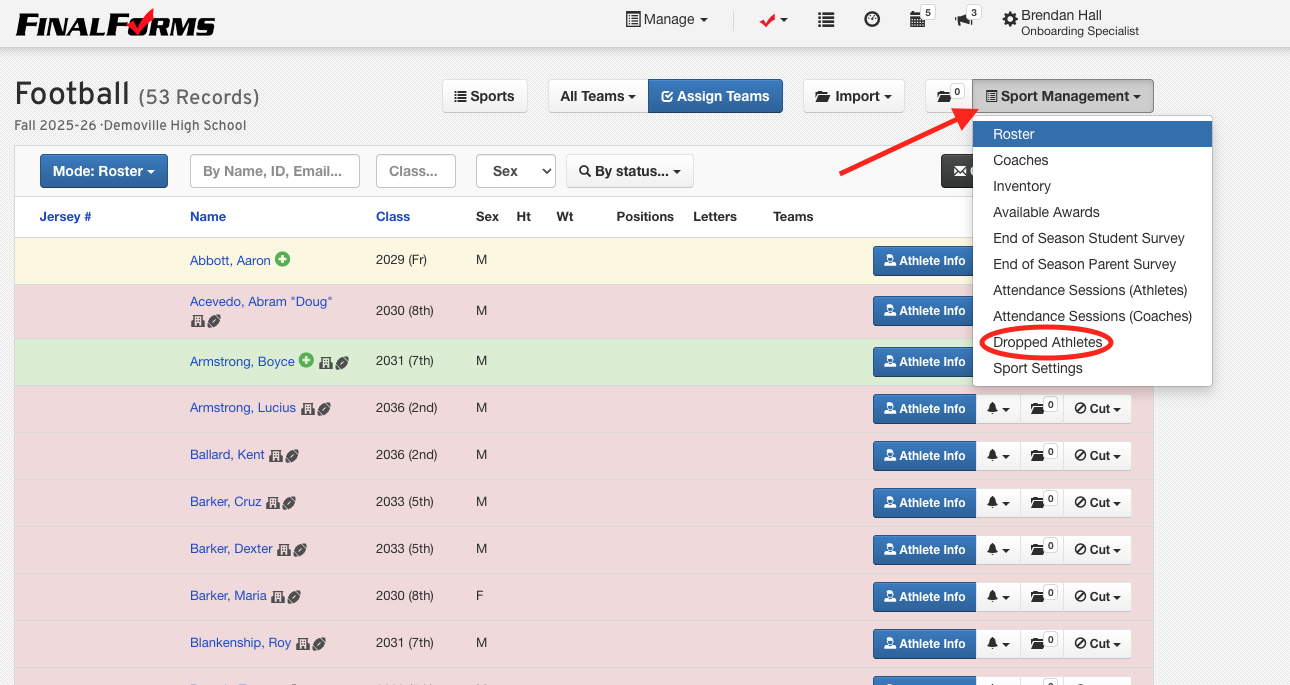
In the right-hand corner of the screen, click on the Sport Management dropdown.
Click on Dropped Athletes.
The athletes who were removed from the sport are listed in the Dropped Athletes box. On the right side of the screen, click the Re-Add button. The student-athlete will be re-added to the sports roster.
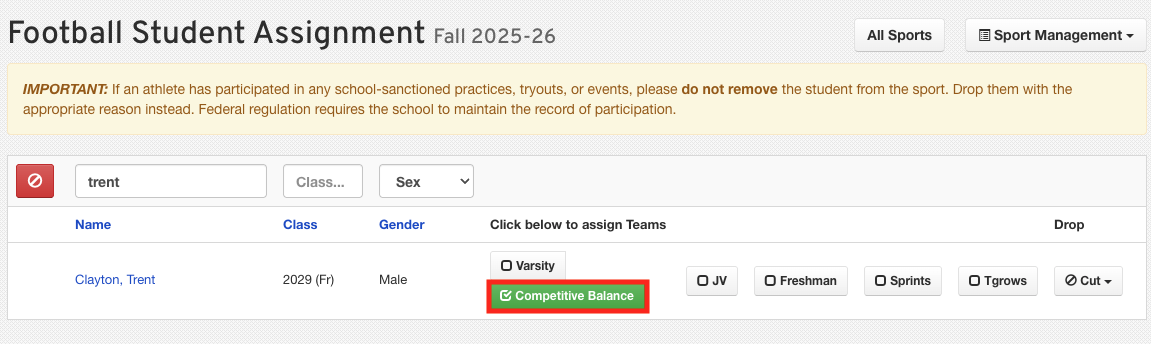
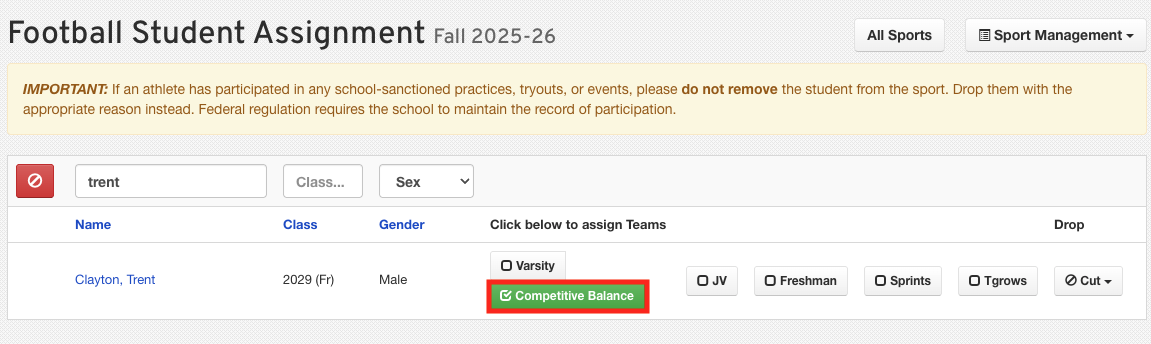
Assign the student-athlete to the Competitive Balance Team using the Assign Teams button.
On the Assign Team page, search for the student's name. Assign the student to the Competitive Balance Team and click Return to Roster.
Step-by-Step Instructions for Adding Any Student
If the above workflow for dropped athletes does not apply to your student, you can use the Add Any Student button to re-add students to your sport roster.
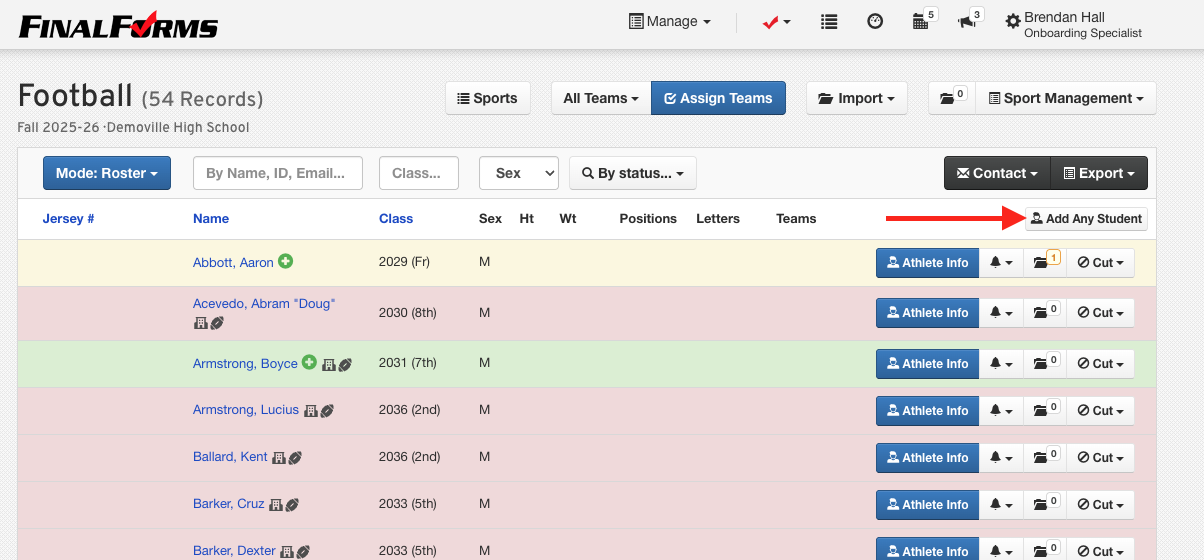
On the right-hand side of the screen, click on the Add Any Student button.
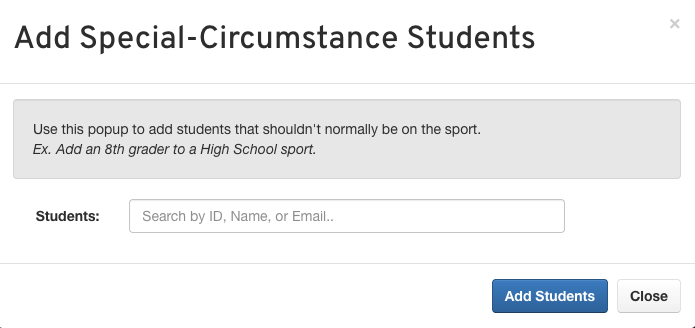
In the Add Special-Circumstance Students box, type the name of the student-athlete you want to add to the roster. Then click the Add Students button. The student-athlete will be re-added to the sports roster.
Assign the student-athlete to the Competitive Balance Team using the Assign Teams button.
On the Assign Team page, search for the student's name. Assign the student to the Competitive Balance Team and click Return to Roster.
For further assistance on re-adding students to sport rosters, please reach out to support@finalforms.com. Thank you for using FinalForms!