
How Do I Edit Tiers?
Welcome to our guide on editing student tiers for Competitive Balance! At FinalForms, we understand that student tiers are sometimes listed incorrectly and need to be updated ahead of submitting competitive balance rosters. Let's walk through the steps together to make this process as smooth as possible!
Step-by-Step Instructions
Log in to your FinalForms account.
Click on Manage > Sports.
Click on the Exports dropdown button and scroll to OHSAA Competitive Balance.
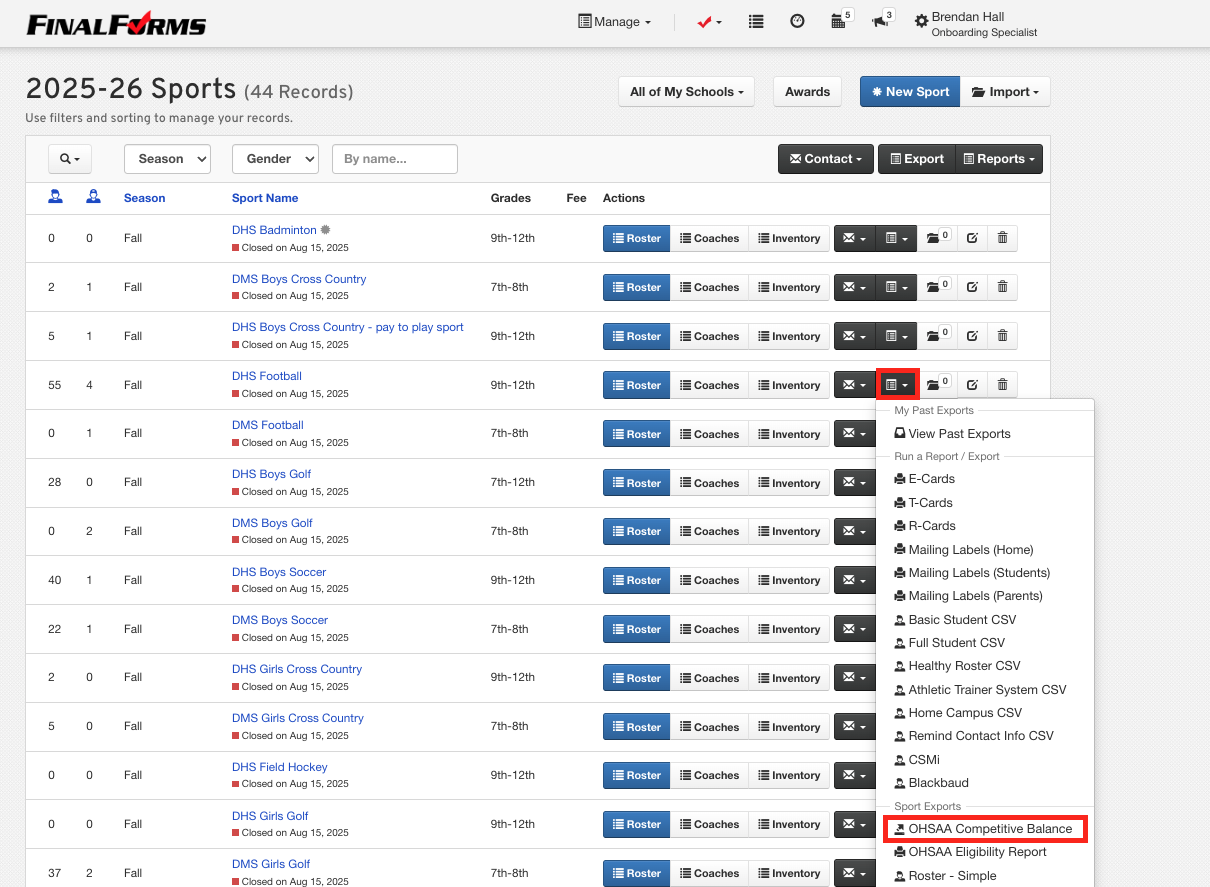
In the OHSAA Competitive Balance Report, review the tiers assigned to each student. For the incorrect tiers, click on the Edit button for the student.
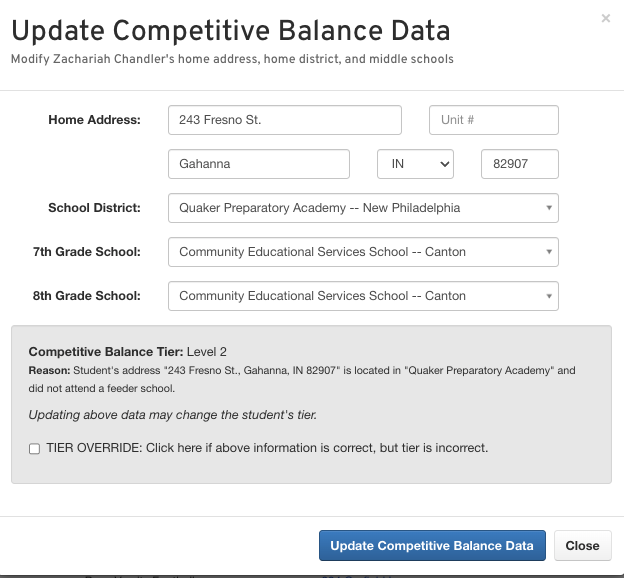
Confirm the student's home address, school district, and 7th- and 8th-grade schools, then enable the TIER OVERRIDE button.
After clicking the TIER OVERRIDE button, an Override Tier dropdown will appear under 8th Grade School.
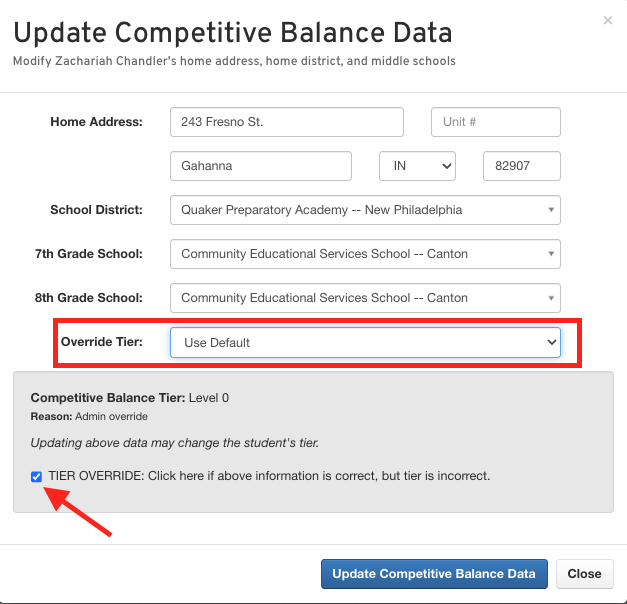
Select Tier 0, Tier 1, or Tier 2, depending on the student-athlete's tier. If no override tier is selected, the default tier will remain.
Once the correct override tier is chosen, click Update Competitive Balance Data. The student's tier will then update.
For more information on OHSAA Competitive Balance, please visit the OHSAA Competitive Balance Resource Center.
For further assistance with updating student tiers in FinalForms, please contact support@finalforms.com.