
Exports Within Roster
The following instructions are designed to help you access a sport, then apply any optional filters for more refined results. For an immediate, unfiltered export/report of a specific sport, click on the button further to the right and choose the Export/Report from the list.
Export E-Cards
Click Manage > Sports.
Click Roster on the sports record.
Set any filters if needed.
Click the Export button and select E-Cards from the dropdown.
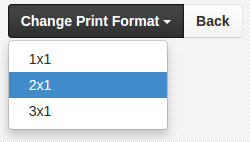
The next screen will load your students' E-Cards, ready to print. Use the Change Print Format button to select the number of E-Cards to print per page.
Click to print your students' E-Cards to paper or PDF format.
Mailing Home Labels / Mailing Parent Labels
Click Manage > Sports.
Click Roster on the sports record.
Set any filters if needed.
Click the Export button.
Select one of the following options:
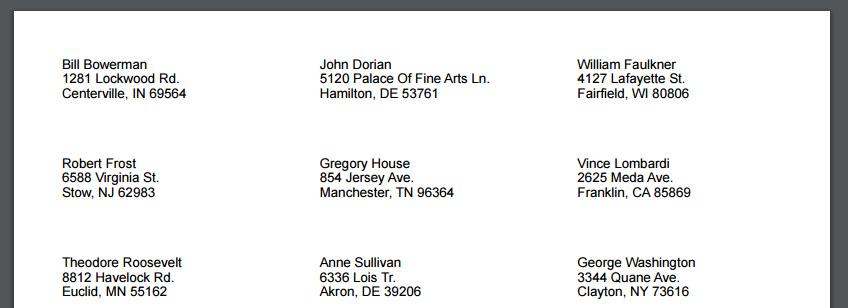
Mailing Labels (Home) - Student home addresses
Mailing Labels (Parents) - Parent home addresses
The Avery 5160 formatted mailing list file will automatically be downloaded to your computer.
Roster
Click Manage > Sports.
Click Roster on the sports record.
Set any optional filters.
Click the Export button.
Select Roster - Full or Roster - Simple.
Your export will run in the background, and an email will be sent when it's ready.
Click the file to open the spreadsheet of all rostered athletes.
Roster & Award History
Click Manage > Sports.
Click Roster on the sports record.
Set any optional filters.
Click the Export button.
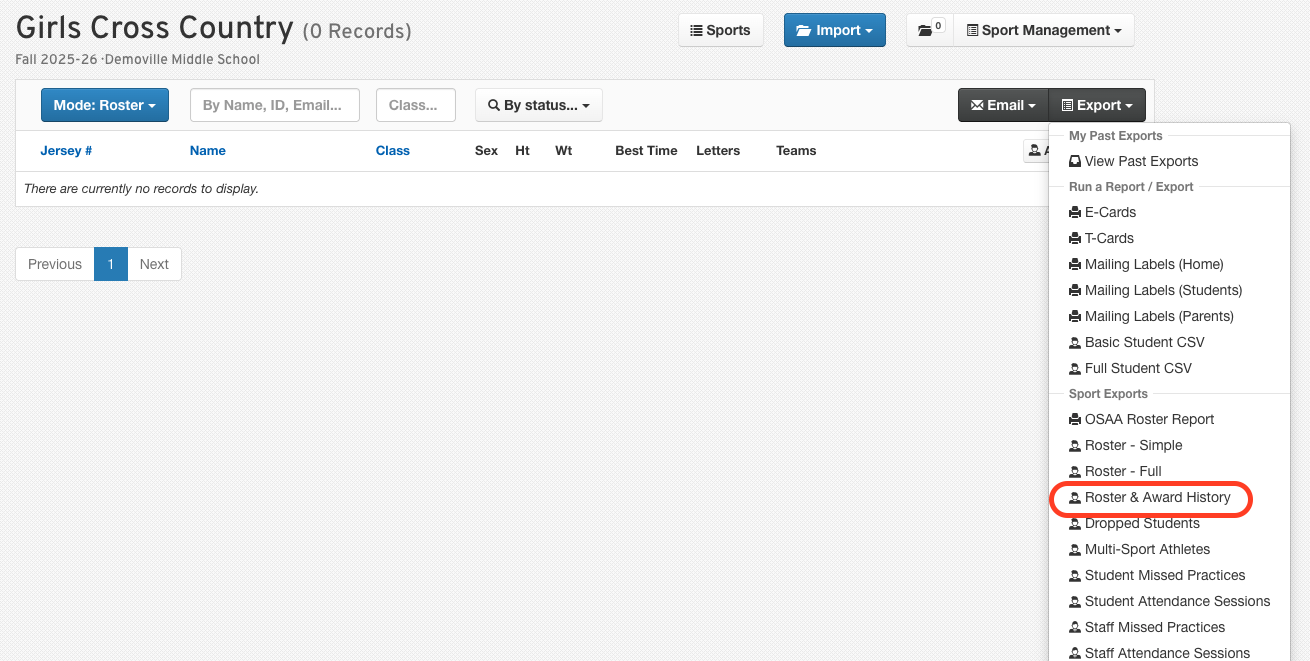
Select Roster & Award History.
Your export will run in the background, and an email will be sent when it's ready.
Click the file to open the spreadsheet of all rostered athletes, their past sports, and their awards in each sport.
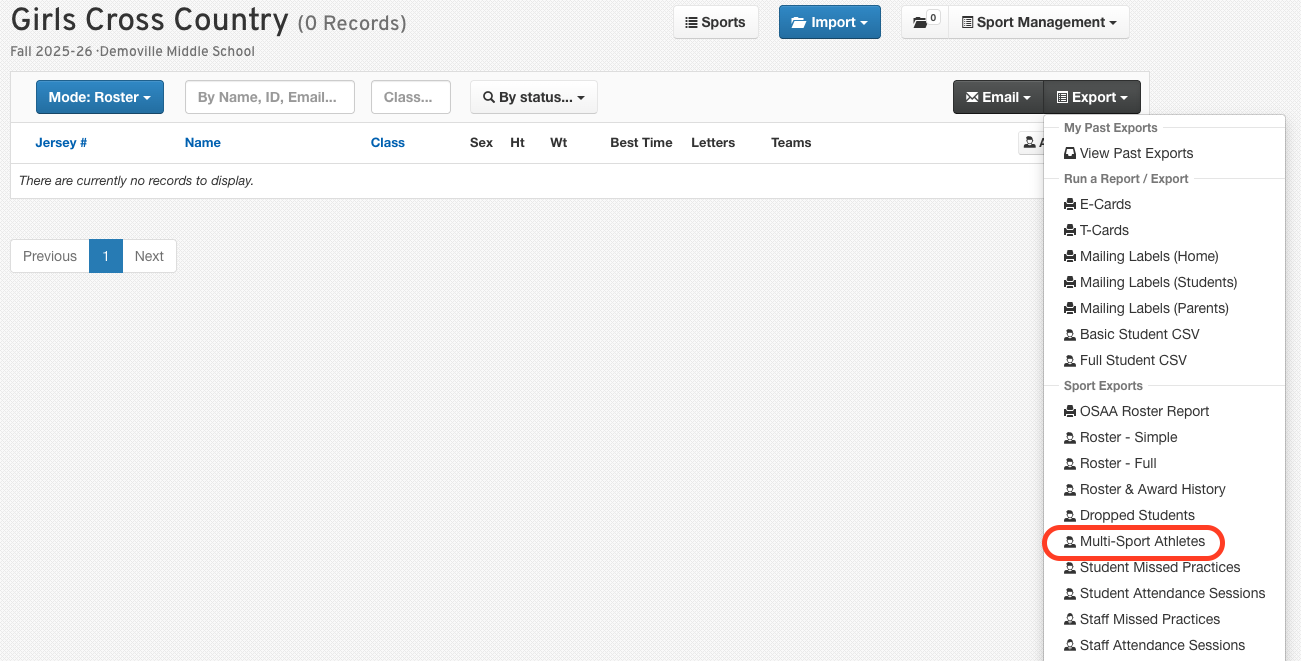
Multi-Sport Athletes
Click Manage > Sports.
Click Roster on the sports record.
Set any optional filters.
Click the Export button.
Select Multi-Sport Athletes.
Your export will run in the background, and an email will be sent when it's ready.
Click the file to open the spreadsheet of all rostered athletes, their past sports, and their awards in each sport.
Dropped Athletes
Click Manage > Sports.
Click Roster on the sports record.
Set any optional filters.
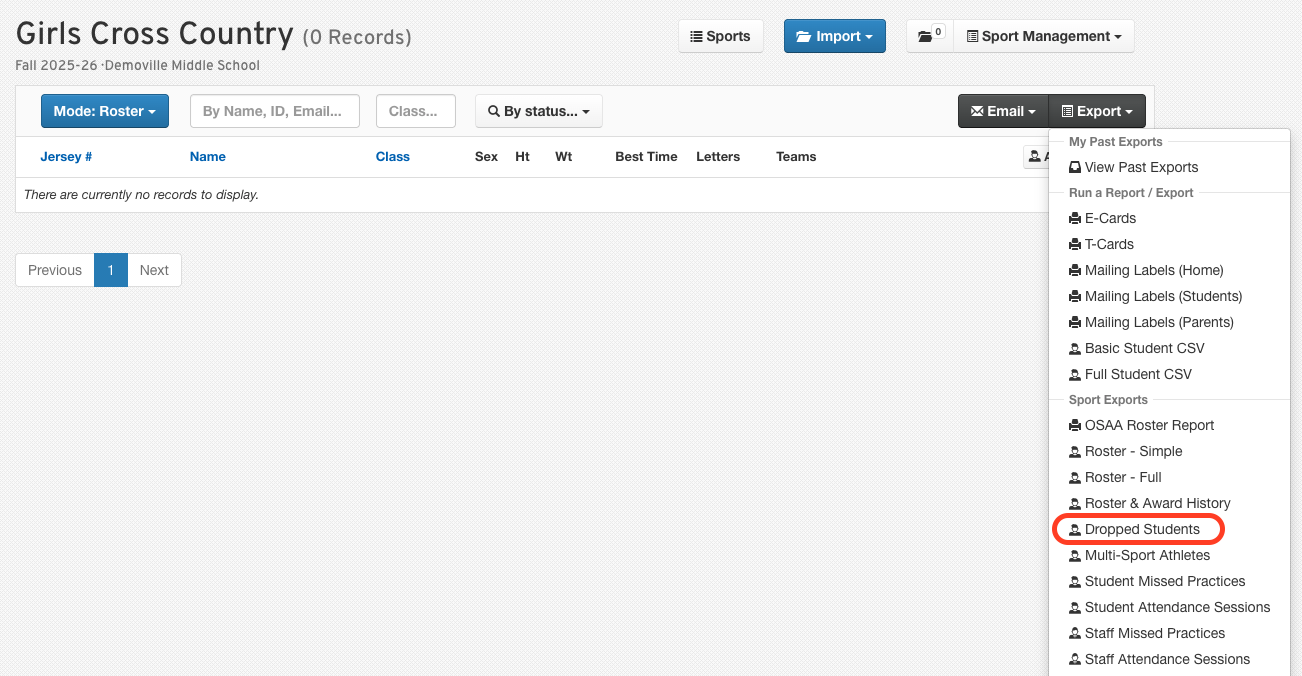
Click the Export button.
Select Dropped Athletes.
Your export will run in the background, and an email will be sent when it's ready.
Click the file to open the spreadsheet of all rostered athletes, their past sports, and their awards in each sport.
Basic Students CSV
Click Manage > Sports.
Click on the sports record.
Set any optional filters.
Click the Export button.
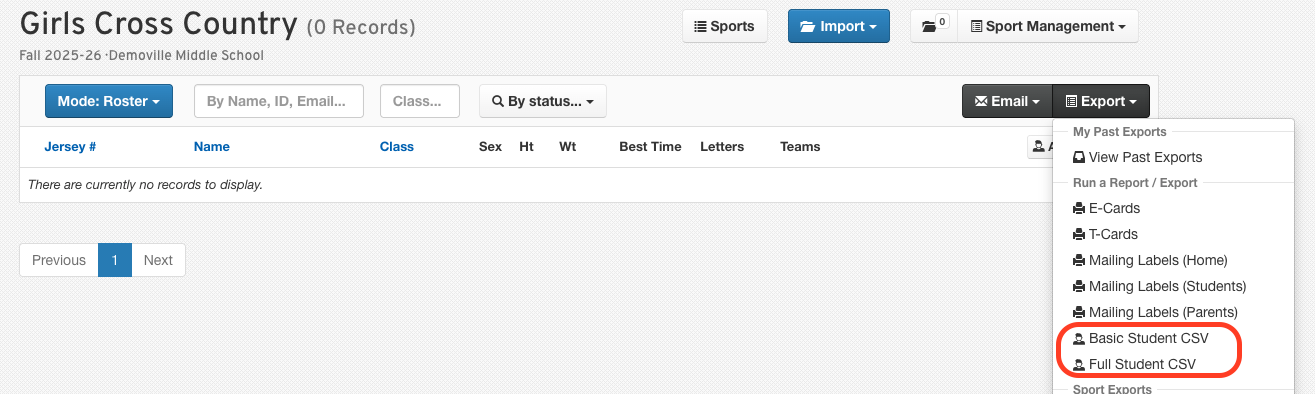
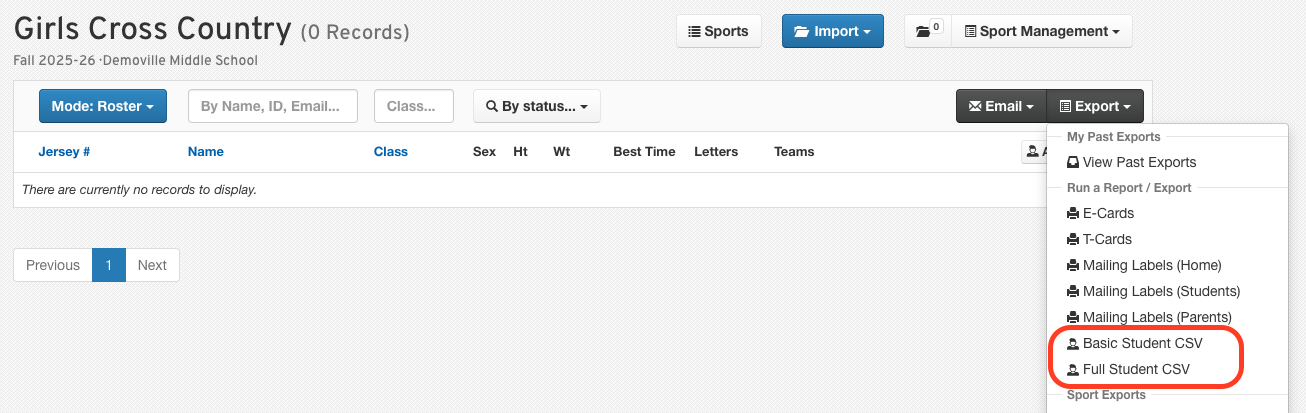
Select Basic Students CSV.
Your export will run in the background, and an email will be sent when it's ready. Or use the User dropdown to check progress.
Click the file to open the spreadsheet of basic information concerning your rostered athletes.
Full Students CSV
Click Manage > Sports.
Click Roster on the sports record.
Set any optional filters.
Click the Export button.
Select Basic Student or Full Student CSV.
Your export will run in the background, and an email will be sent when it's ready.
Click the file to open the spreadsheet of all rostered athletes, their past sports, and their awards in each sport.
List Form Exports
Click Manage > Sports.
Click Roster on the sports record.
Set any optional filters.
Click the Export button.
Hover your mouse over Show Form Exports to see a list of your athletes' forms.
Select the form title for which you wish to export responses.
Your export will run in the background, and an email will be sent when it's ready.
Click the file to open the spreadsheet containing the information collected in that form, as well as the date it was completed.
We hope these instructions help you generate the roster information you need.