
Create a New Staff Account
Click Manage > Staff.
Click the New Staff button in the top right.
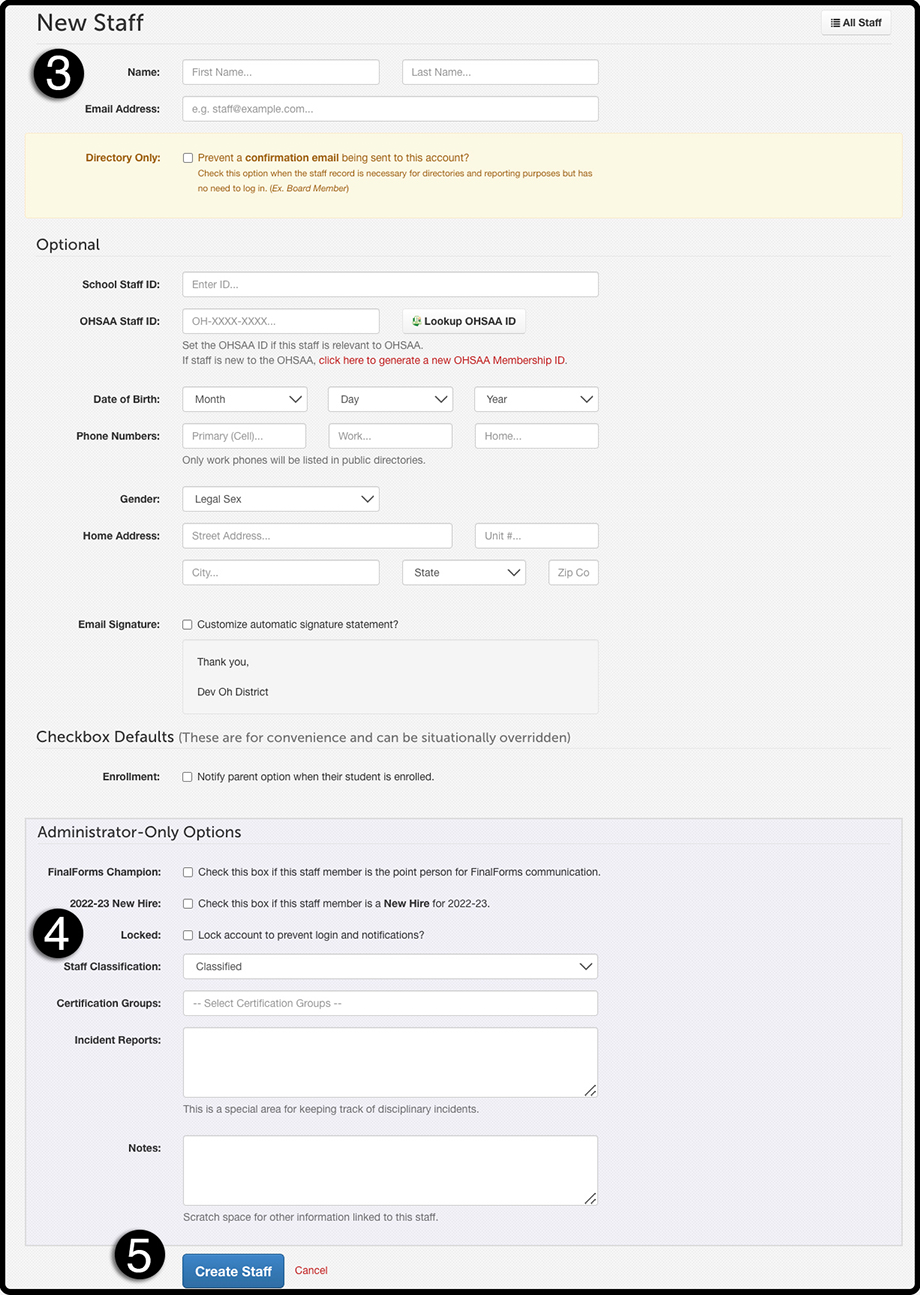
Input first name, last name, and email address, filling in any Optional fields as necessary.
Choose Administrator-Only Options, such as new-hire status, classifications, or certification groups.
Click Create Staff at the bottom of the page.
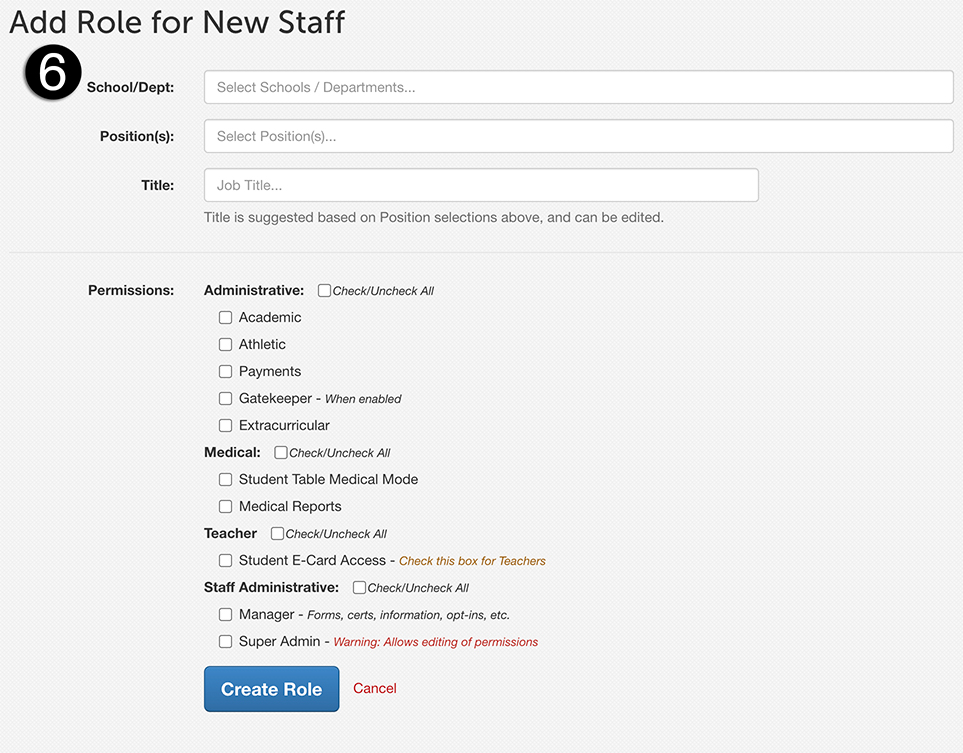
Next, you will set Roles and Permissions:
Select all Schools the staff member will be working in.
Select all Positions they will hold.
Adjust their Title as necessary.
Assign Permissions to the staff member (if applicable).
Click Create Role.
Notes: Simply assign Coaches, Advisors, and Teachers to their respective Sports, Activities, or Groups. No permissions needed!
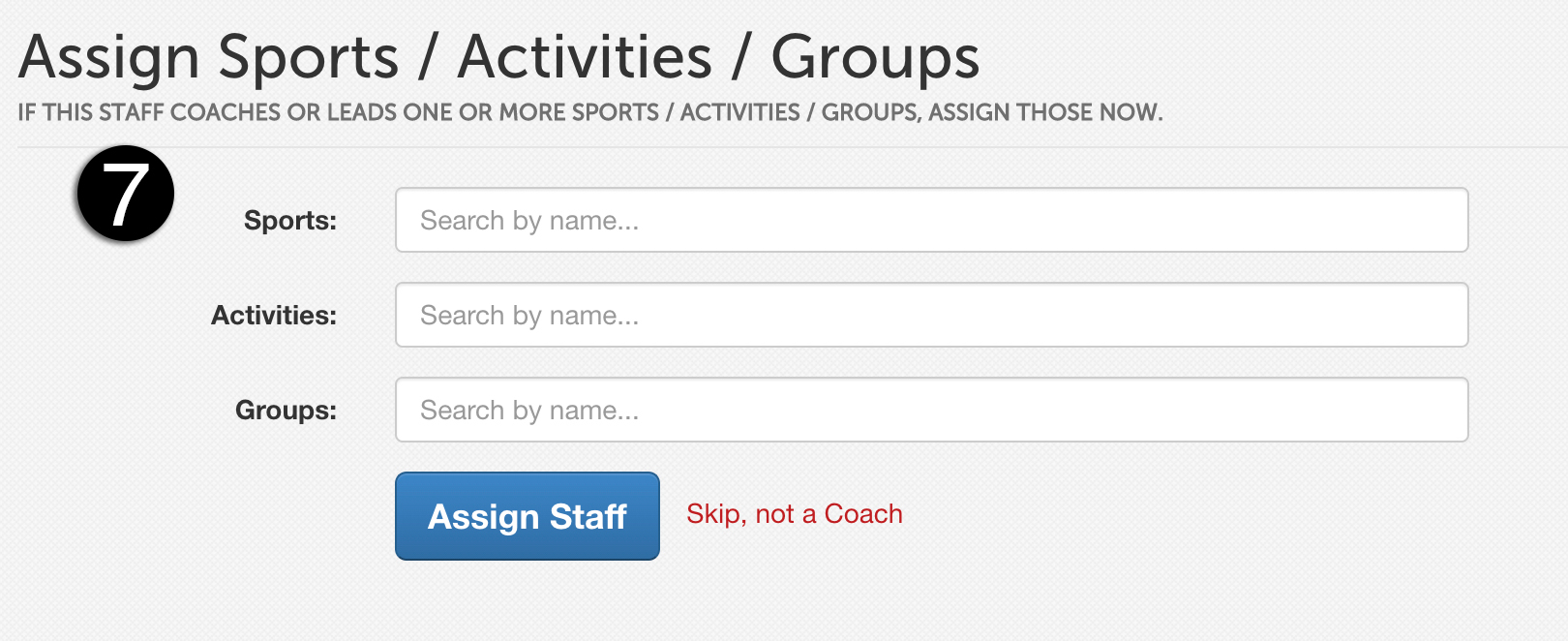
Once you reach the final screen, you can assign the sports, activities, or groups that this staff member coaches or advises. Select all that apply, then click Assign Staff to finalize the account creation process.
Note: To add or modify roles at any time:
Click Manage > Staff.
Click on an existing role or click + Add Role on the staff member's row.