
Adding or Editing a Student Athlete's Physical
Our enhanced Physical Review and Athletic Eligibility features are designed to save you time and keep your athletes' records up to date with minimal effort. Using the Physical Expiration Date Calculator, you can quickly monitor when a student's physical exam is set to expire. Our system sends reminders to parents/guardians 60, 30, 15, and 5 days before expiration, and on the day of expiration, helping you stay compliant with your state's regulations and streamline your workflow.
You can quickly learn how to add a student's physical to a student's profile.
Click Manage > Students.
Click Mode and select Athletic Mode.
Filter for Documents within the By Status dropdown to select those with uploaded physicals to review.
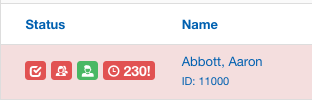
Click the physical countdown button next to a student's name to open the Physical & Athletic Eligibility pop-up window.
Review the details in the pop-up window:
Physical Document: The uploaded document will be available for your immediate review; you no longer need to access the Documents Folder. Use this to confirm the information or identify any missing details. If a physical is rejected, an automatic notification will be sent to the parent, eliminating the need for manual follow-up.
Exam Date: Use the Today button to set today's date, or use the Calendar icon to select a past date.
Expiration: Click calculate [state] to automatically generate the expiration date based on your state's regulations.
Physical Status: Select the status from the dropdown menu to indicate if the student is Cleared, Limited, or Uncleared. See below for status definitions and impacts on eligibility.
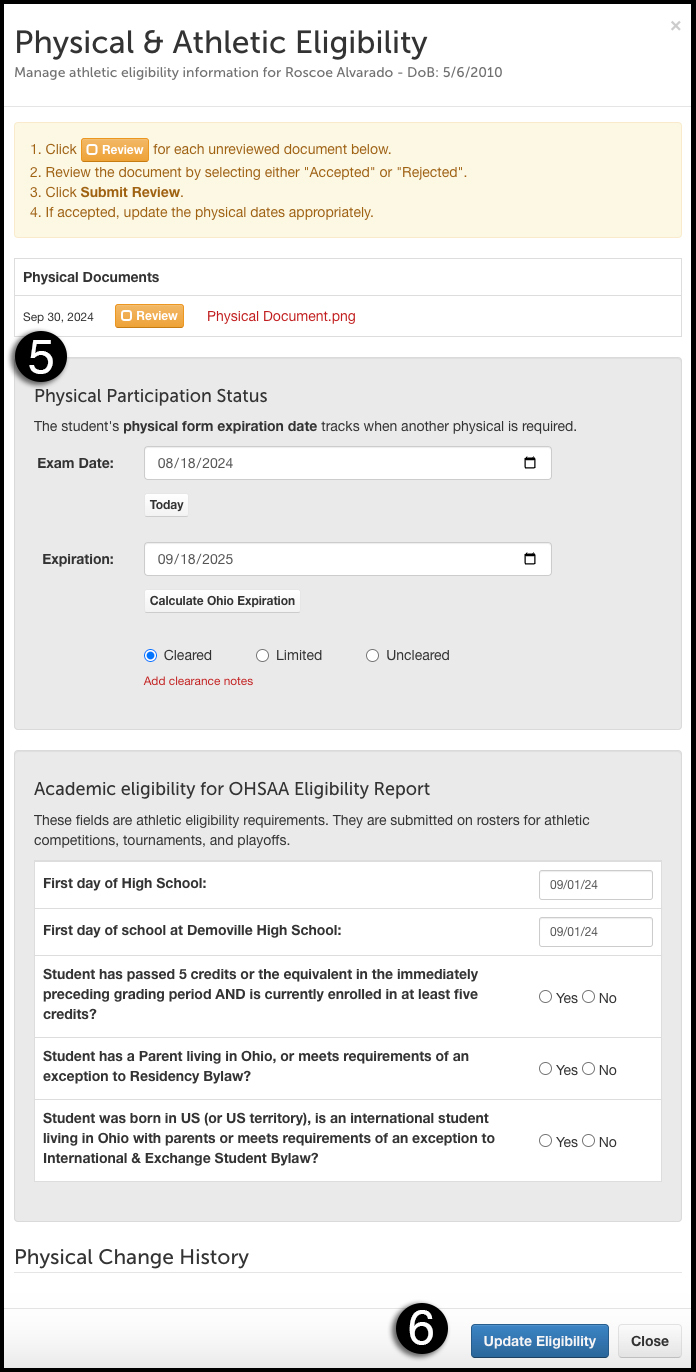
When finished, click Update Eligibility to save your changes.
If a physician states that a student is either uncleared or limited for athletic participation:
You can update the physical status accordingly in the Physical Status dropdown menu. Use the Reason field to record the physician's explanation. Here's what these statuses mean:
Uncleared: The student is fully disqualified from participating in any athletic activities until further notice.
Limited: The student has specific restrictions or conditions under which they can participate, as outlined by the physician.
Once you've updated the status, select Update Eligibility to save your changes. Keep in mind that any change in physical status will trigger. If a physician states that a student is either Uncleared or Limited for athletic participation, update the physical status in the Physical Status dropdown menu accordingly. Use the Reason field to record the physician's explanation. Here's what these statuses mean:
Uncleared: The student is fully disqualified from participating in any athletic activities until further notice.
Limited: The student has specific restrictions or conditions under which they can participate, as outlined by the physician.
Once you've updated the status, select Update Eligibility to save your changes. Keep in mind that any change in physical status will trigger an excalimation mark on the countdown clock, potentially affecting the student's eligibility until compliance is restored.
Helpful Tips for Managing Physicals
Emails for Uploads: Sign up for Document Notification Opt-Ins to receive alerts when new physicals are uploaded by parents, so you can act quickly without manually checking each student's record.
Filtering and Sorting: Use the filters in Athletic Mode to zero in on students with upcoming expirations or newly uploaded documents. The badge counter on the Physical icon will help you identify which students need immediate attention.