
I'm Getting an Error Saying I Need to Assign a Student to the Competitive Balance Team. What Do I Do?
Welcome to our guide on ensuring that only varsity athletes are included on your roster! At FinalForms, we understand that managing your sports teams can be complex. That's why we've streamlined the process by automatically creating a Competitive Balance team for the sports that require submission. Let's walk through the steps together to make this process as smooth as possible!
Step-by-Step Instructions
Log in to your FinalForms account.
Click on Manage > Sports.
Click the blue Roster button for any sport.
In the top right corner, click the blue Assign Teams button.
Ensure all varsity athletes are assigned to the Competitive Balance team for proper reporting.
Note: Assigning athletes to a varsity team will automatically add them to the Competitive Balance team.
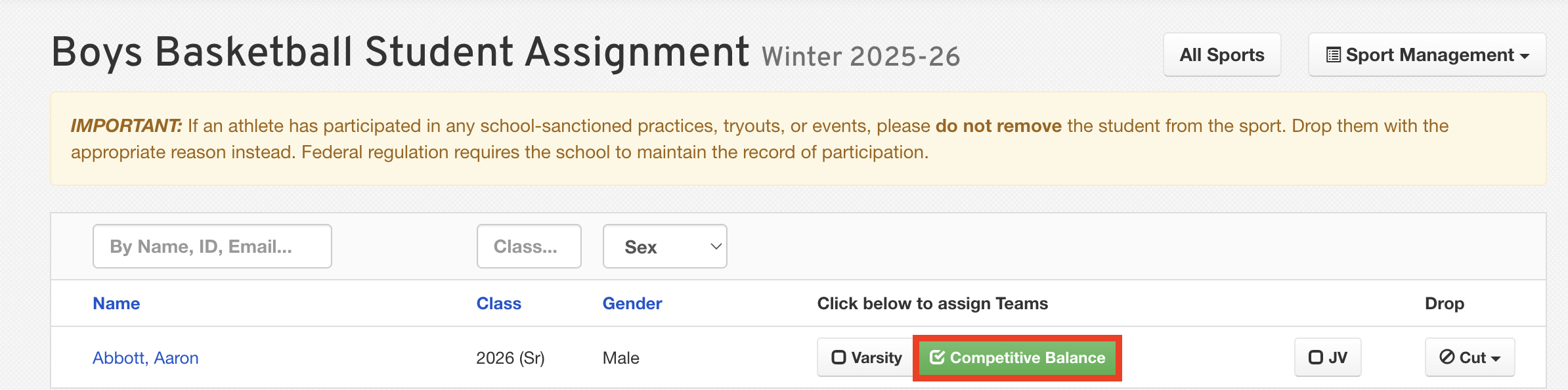
Click Return to Roster at the bottom of the page.
Click the All Teams filter dropdown.
Select the Competitive Balance Team.
Click the Export dropdown.
Select the OHSAA Competitive Balance Report.
Verify all information and correct any errors using the available buttons.
When you're ready, click Submit to send the report to the OHSAA.
For additional rostering guidance, please refer to our Helpful Information for Competitive Balance Rostering.
If you need further assistance, you can review the FinalForms Competitive Balance Guide. Simply type your school district's name into the search bar to access the guide tailored to you.
Thank you for using FinalForms, and happy rostering!