
How to Manage Special Ed Students on Unified Rosters
This document outlines the process for adding a custom grade designation for students who continue their education after the 12th grade, including those receiving special education services or participating in unified sports. It also provides instructions for updating student grade levels and registration options.
Custom Grade Designation
Many districts utilize Grade 23 or Grade 13 as the grade designation for students who are continuing their education after the 12th grade. If your district would like to implement this custom grade, we can add it as an option within our system. This will allow you to update the grade levels for these students accordingly.
If your site includes unified sports, we can also incorporate this custom grade into the registration options for these sports.
Contacting Support
If you wish to have this custom grade added, please reach out to our Support Team. To facilitate this process, we will need the following information:
Would you like the grade name to be Grade 23 or Grade 13?
What schools will host this grade level?
What sports need to have this grade included as a registration option?
Updating Student Grade Levels
If you already have a custom grade created, you can follow these steps to update a student's grade level to this custom designation:
Click Manage > Students.
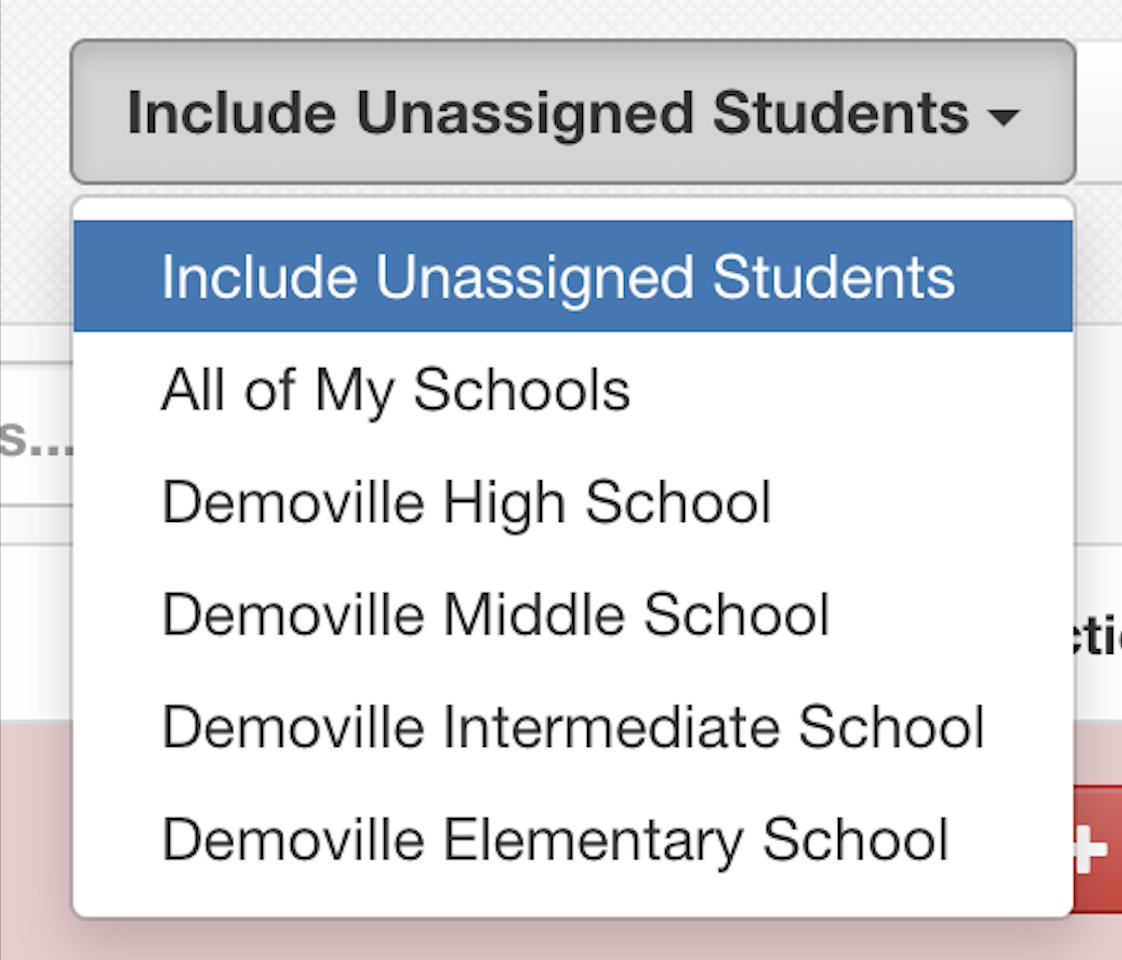
Note: If the student is marked as graduated, you will need to select Include Unassigned Students from the school filter dropdown:
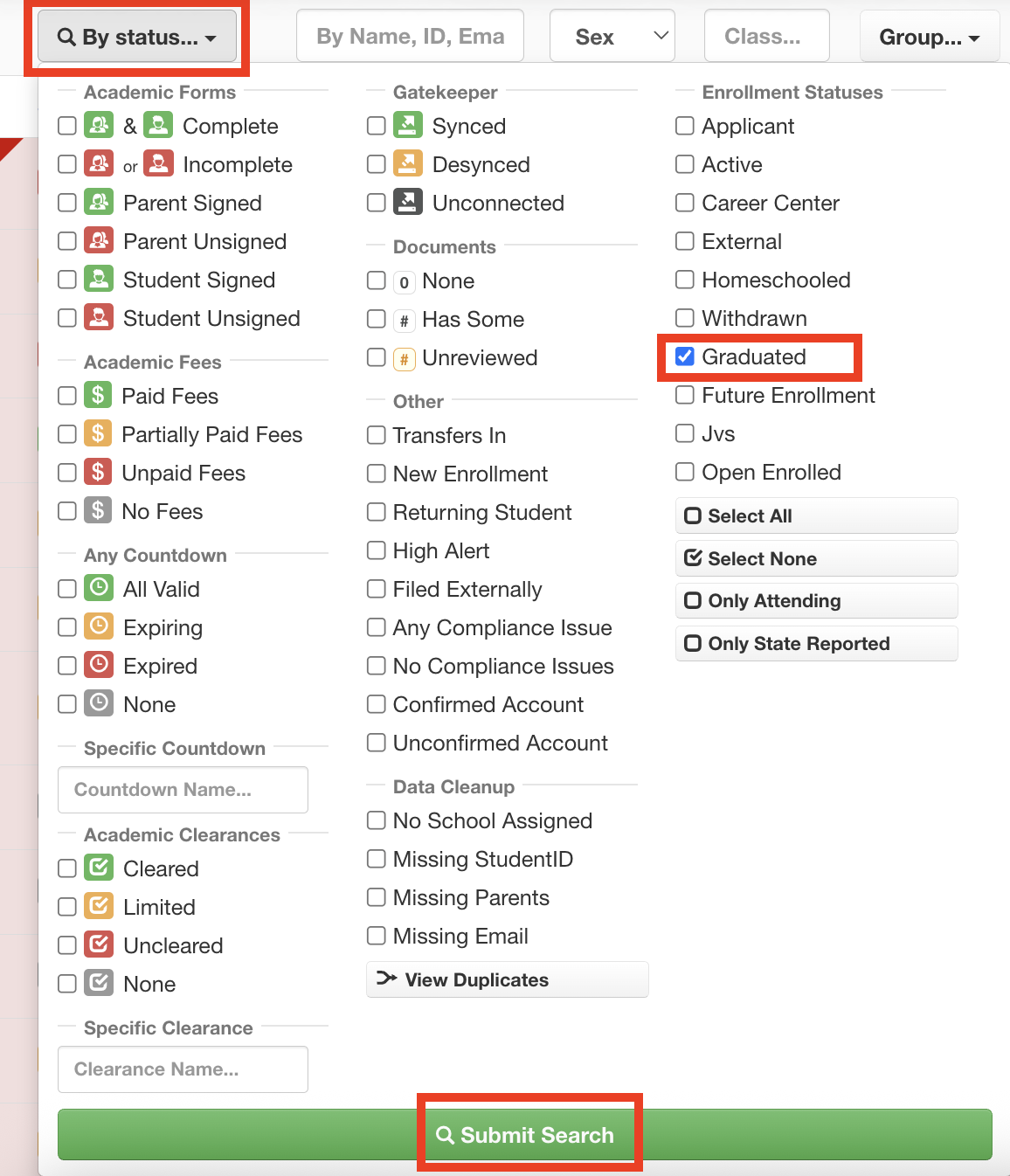
Include the enrollment status Graduated in your By Status dropdown filter:
Search for the student's name.
Click the Edit button in the student's row.
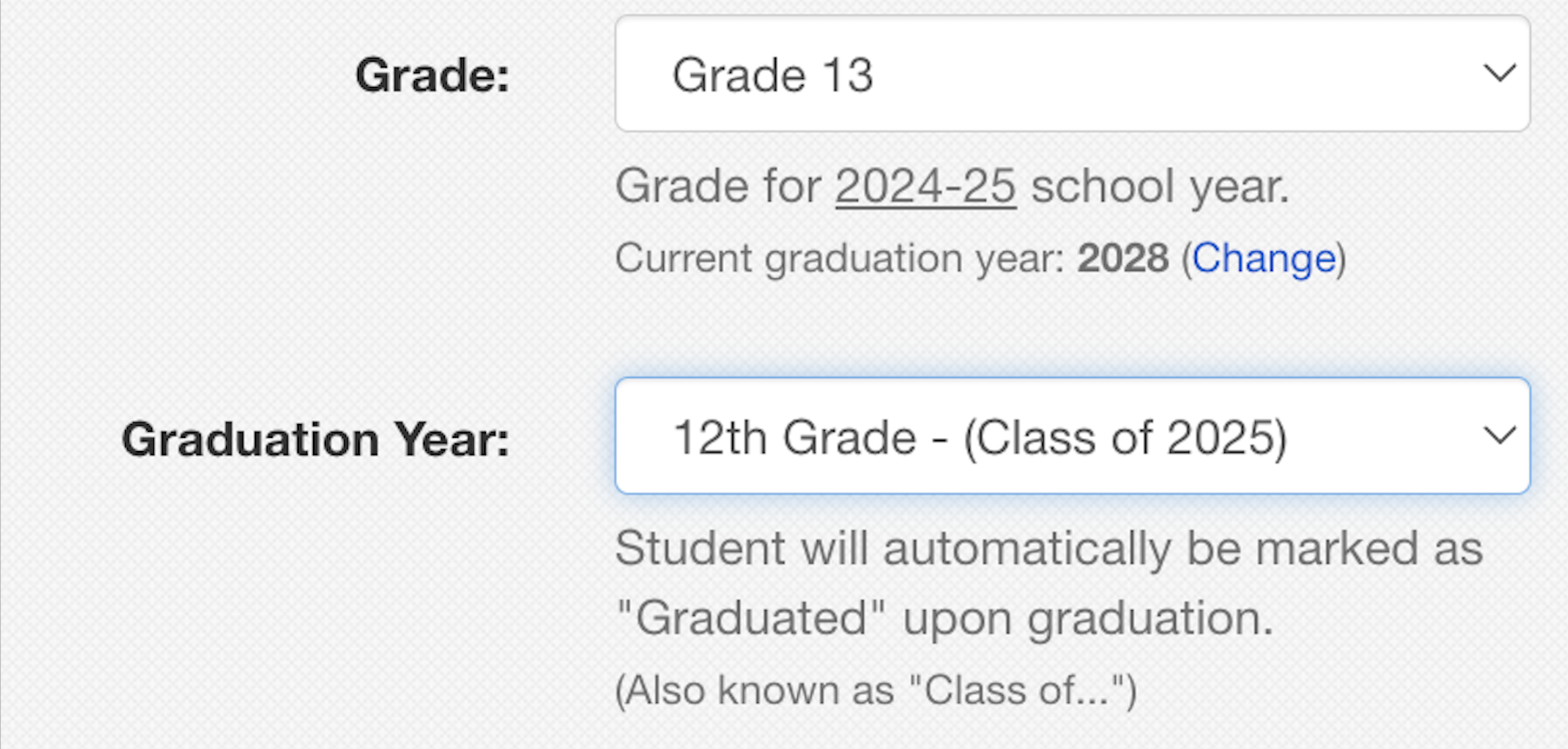
On the student's edit page, update the grade level and graduation year. The Graduation Year can be set to the year that you think the student will graduate:
Scroll down to the bottom of the page and click Update Student to save the changes.
Click the Edit button in the student's row again to return to their edit page.
Scroll down to the student's enrollment records and click Edit Record on the Graduated enrollment record.
Change the status of the record from Graduated to Active.
Note: You may need to update the student's school assignment.
Scroll down to the bottom of the page and click Update Student to save the changes.
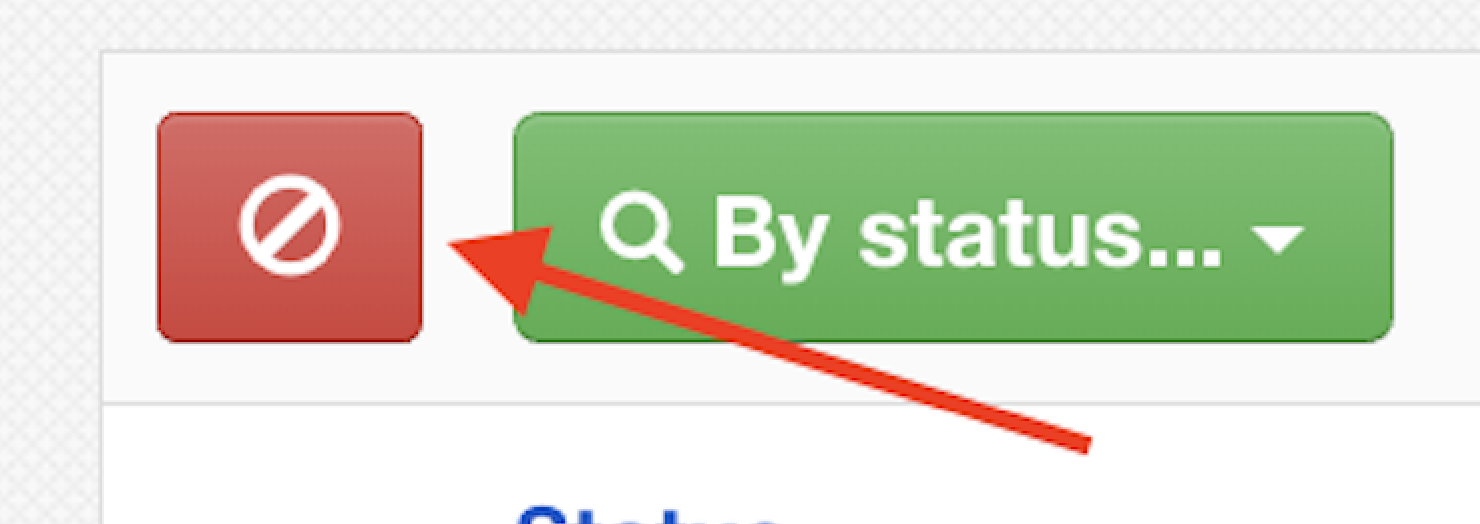
The student will now appear as an Active student. Remember to clear your filters on the Manage > Students page to review them in your students table.
If you have any questions or require further assistance, please do not hesitate to contact our Support Team.