
Parent Created a Duplicate Student Account
Welcome to our guide on managing student accounts in FinalForms! Keeping accurate records is essential, and we understand that duplicate student accounts can be a hassle. But don't worry! This friendly guide will help you navigate the process of resolving duplicate accounts smoothly and efficiently.
Common Duplicate Scenarios
Duplicate accounts typically occur when:
Parents/Guardians create separate accounts (married or separated).
Parents/Guardians create multiple accounts (the most common scenario).
A student attempts to self-register as their own Parent/Guardian (the least common scenario).
What Gets Merged?
During a merge, the following are automatically retained from both accounts:
All uploaded documents
Sports, activities, and group registrations
Parent account connections
For Administrators Without Super Admin Permissions
If you don't have Super Admin permissions, you'll need to request your Staff Super Admin to enable the necessary permissions for your account.
For Admins with Super Admin Permissions
Once your permissions are set, you can follow these steps to access the merge interface:
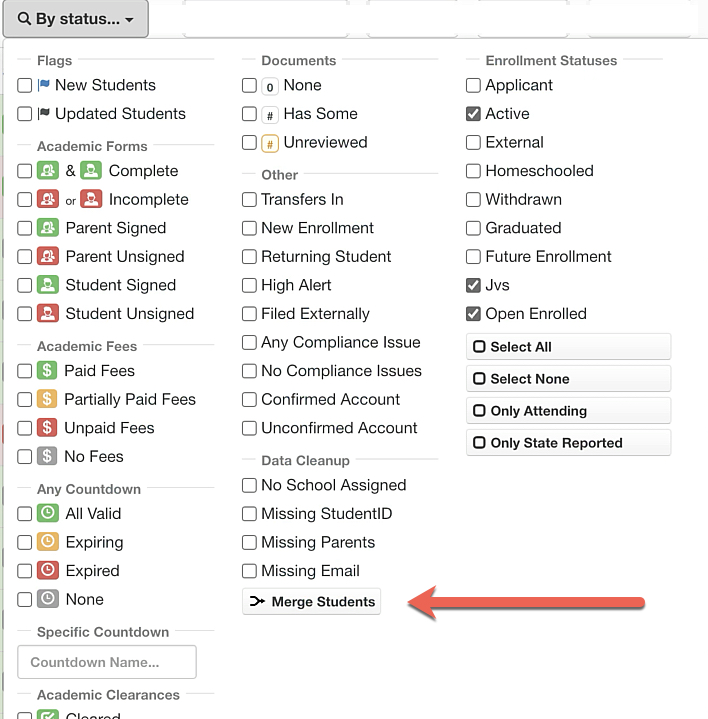
Navigate to Manage > Students.
Click on the By Status dropdown.
Click View Duplicates under Data Cleanup. Then, click the green Submit Search button.
Using the Merge Interface
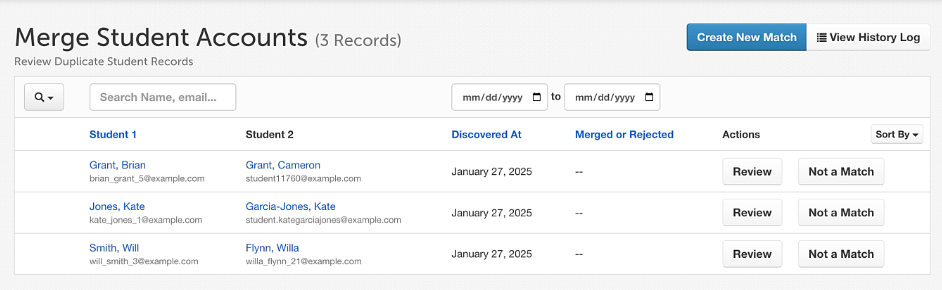
In the merge interface, you can search for possible duplicate accounts by name, email, or student ID. Here's how to proceed:
If no match is available, click the blue Create New Match button.
If a match is available, click the Review button in the student's row.
Choosing the Primary Account
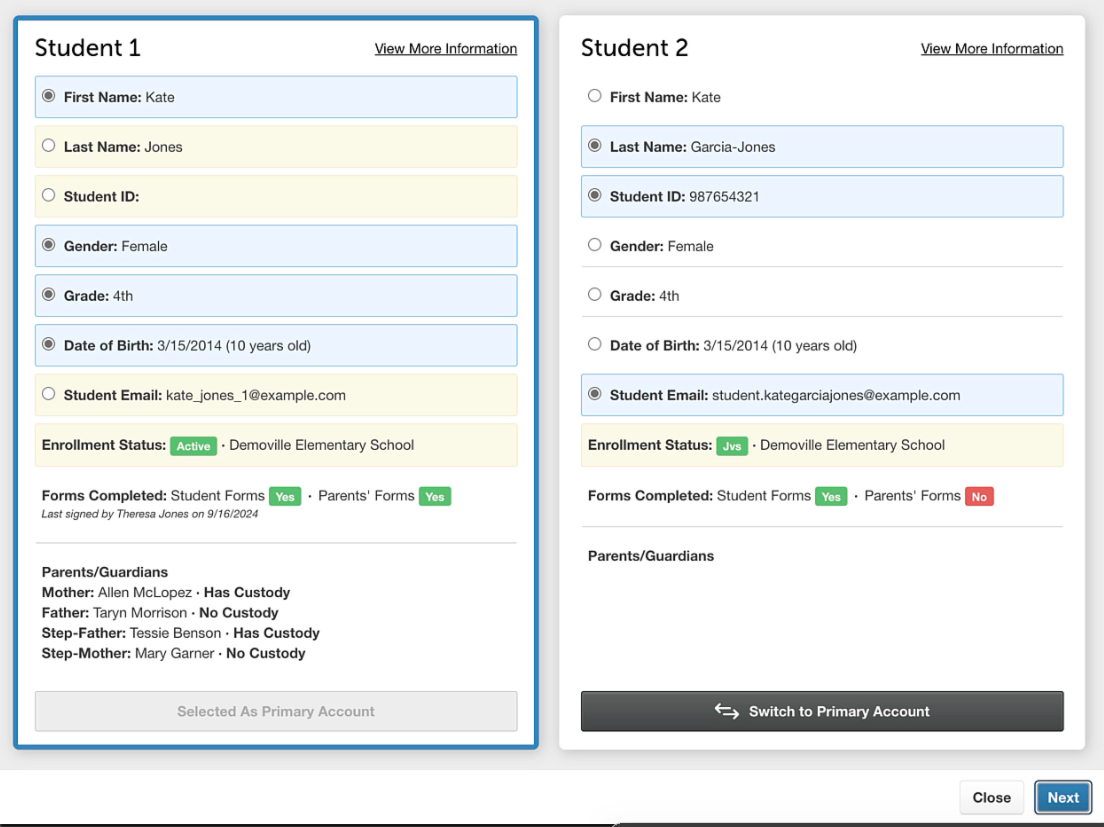
Next, you'll need to choose which account you would like to set as the primary account. Pro tip: Look for the account with the most recently signed or correct forms, as this should usually be set as the primary account.
Once you've chosen the primary account, you can select any values from the secondary account that you would like to override or bring into the primary account. All values in blue will be retained in the primary account as information. For example, the Student 2 Student ID number will replace the blank Student ID in the primary account.
Finalizing the Merge
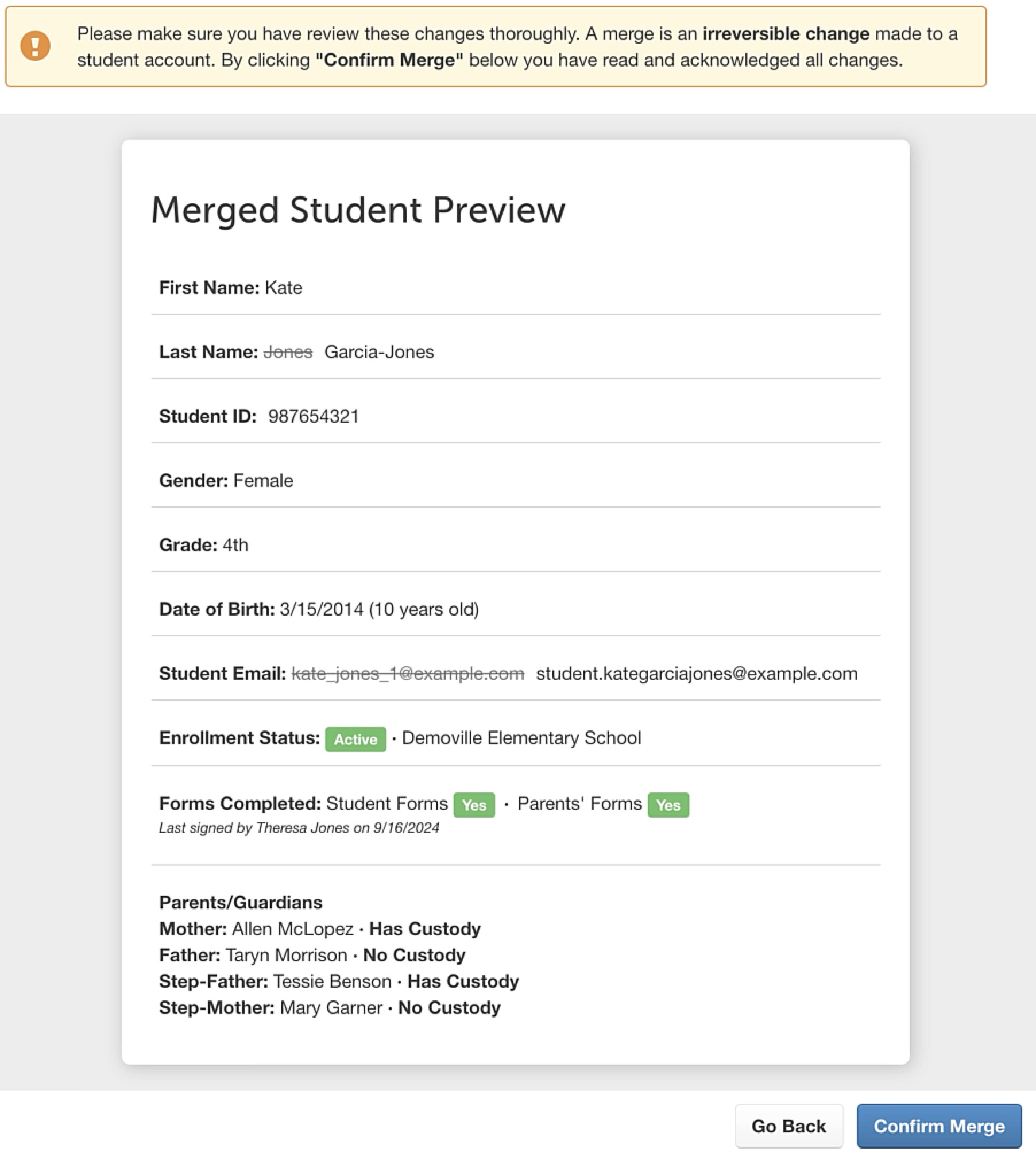
After making your selections, click Next at the bottom right of the pop-up. A new pop-up window will appear, allowing you to review the information included in the primary account. Remember, merging students is a permanent action that cannot be undone, so reviewing this information is crucial!
Finally, click Confirm Merge. It's important not to leave the merge page until the student is marked green and you see the message confirming that the accounts have been merged. Please note that this process may take a few minutes.
Read-Only Access
Use the Read Only option to restrict a parent's ability to make changes while maintaining their viewing access only during specific custodial arrangements or when directed by your legal counsel.
Multiple Account Merges
For times with more than two potential matches (this is super rare):
Choose the most complete account as Primary
Merge one account at a time, always maintaining the same Primary
Review results after each merge
Thank you for taking the time to learn how to manage duplicate student accounts in FinalForms! We hope this guide makes the process easier for you. If you have any questions, feel free to reach out to our Support Team!