
Understanding the Parent Experience in FinalForms
Introduction
This article provides an overview of the parent experience in FinalForms. Understanding what parents see and do in FinalForms will help school administrators support them more effectively, address their pain points, and resolve common issues.
Why This Matters
As the first line of support for parents, knowing their experience is crucial. When parents reach out with questions, you’ll be able to guide them confidently, saving time and reducing frustration for everyone.
Main Stages of the Parent Experience
Parents go through three main stages in FinalForms:
Creating a FinalForms Account
Completing Required Forms
Registering for Sports or Activities
You can also assist parents by adjusting account information, sending password resets, and enabling translations for ESL families.
Account Creation
When parents visit your school’s FinalForms page, they’ll see a simple sign-in button. They enter their contact information, verify their account, and create a password. If they need help, a helpful video is available on the login page.
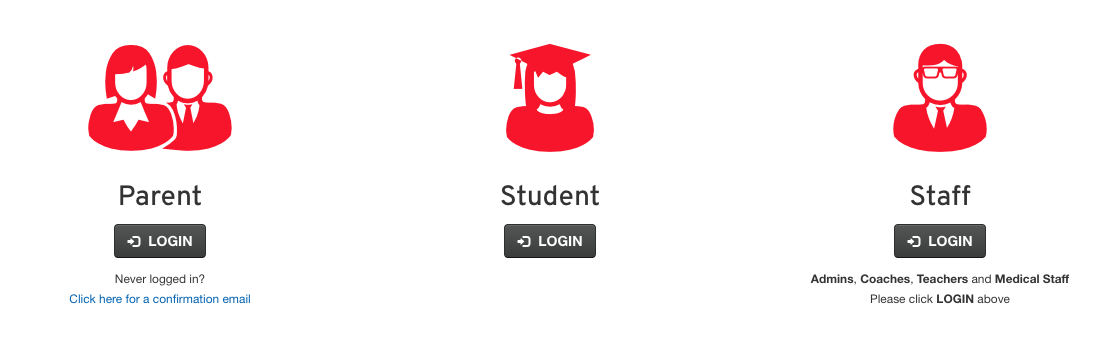
Pro Tip: One parent account can manage all their students. Each parent should have their own account—avoid shared family accounts.
Dashboard and Forms
After logging in, parents access their dashboard to add students and complete required forms. This ensures students are assigned to the correct school and grade. During open registration, parents can sign up for sports and see if registration is open or capped.
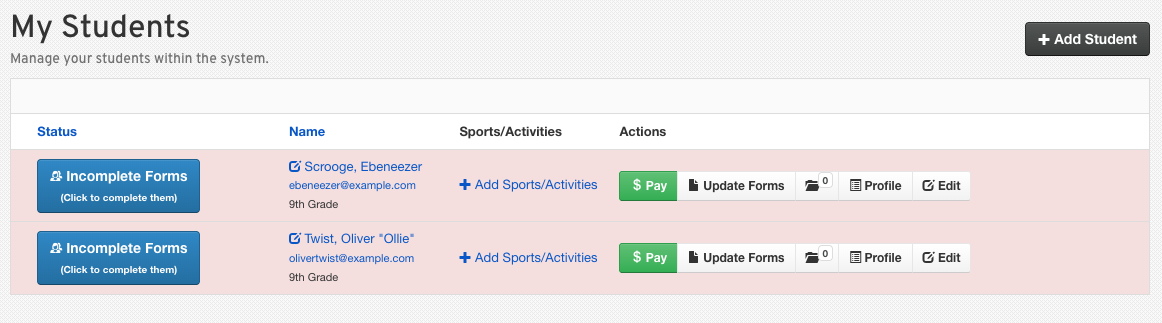
Forms are clearly marked with required fields and signatures. Both parents and students may need to sign in from their own accounts.
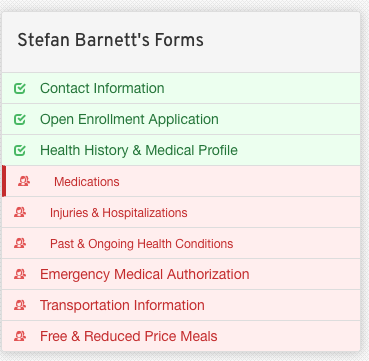
Pro Tip: Red and green indicators show form status. Green means complete; red means action is needed. Parents can track progress and jump between forms as required.
Using Parent Home for Support
The Parent Home feature lets you see exactly what parents see. From Manage > Parents, click the Parent Home button to view their dashboard, students, form statuses, and available actions. This makes it easy to walk parents through any process.

For ESL families, activate translations in their profile. Over 100 languages are available, and the Google Translate tool in the bottom right corner helps families navigate in their preferred language.

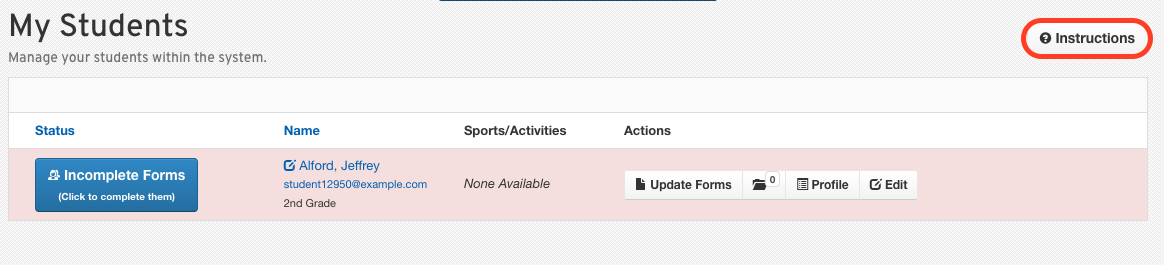
Don’t miss the Instructions button in the top right—it provides a step-by-step guide for parents, including videos and translated instructions.
Recap
You’re now equipped to turn parent confusion into success. Whether parents are new, registering for sports, or need language support, you have the tools to help them succeed in FinalForms.