
Notification Opt-Ins & Alerts
In this article, we will explore the various notification options available to administrators in FinalForms. These features are designed to help you stay informed and manage your team's communication effectively.
Key Notification Features for Admins
As an administrator, you have access to several powerful notification features that can enhance your workflow. Here's what you can do:
Subscribe Staff to Notification Emails: You can easily subscribe yourself and your staff to receive important notification emails, ensuring they are always in the loop.
Set Alert Field Subscriptions: Customize which fields trigger alerts for your team, allowing for tailored notifications based on specific needs.
Receive Daily or Weekly Summaries: Stay updated with daily or weekly summaries of notifications, helping you manage your time and priorities effectively.
Understanding Notification Options
It's important to note that notification options may vary based on the role and permissions assigned to each user. This flexibility allows you to control who receives what information, ensuring that everyone has access to the relevant updates they need.
By utilizing these features, you can enhance communication within your team and ensure that everyone is informed and engaged. Happy managing!
Changing Notification Settings
Click the gear icon in the top-right corner of any page in FinalForms.
Select Edit Profile.
On the edit page, scroll down and find the section labeled Roles/Permissions/Notification Opt-Ins.
Depending on your role in your district, you may have multiple buildings in this section. You can opt in to receive notifications at the school level, or, if you have a District Office role, you can receive notifications for any building in your district.
Click # / # Opt-Ins.
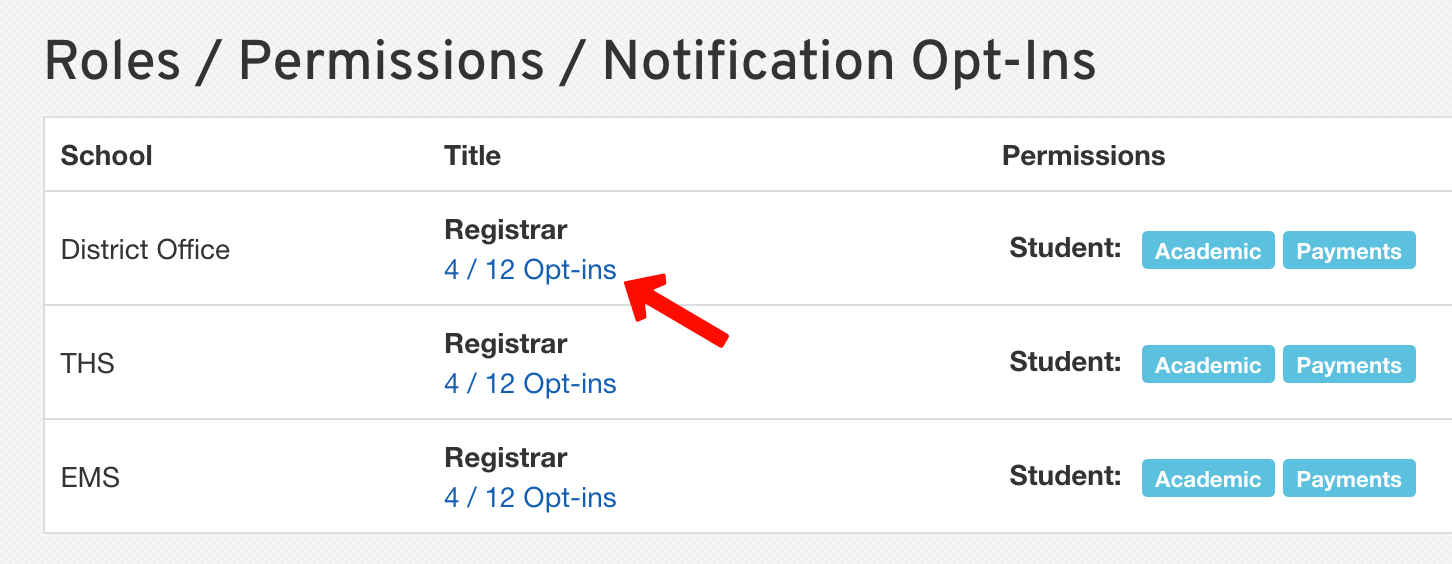
A pop-up window will appear. Scroll down to the Email Notifications Options section to check or uncheck the available options.
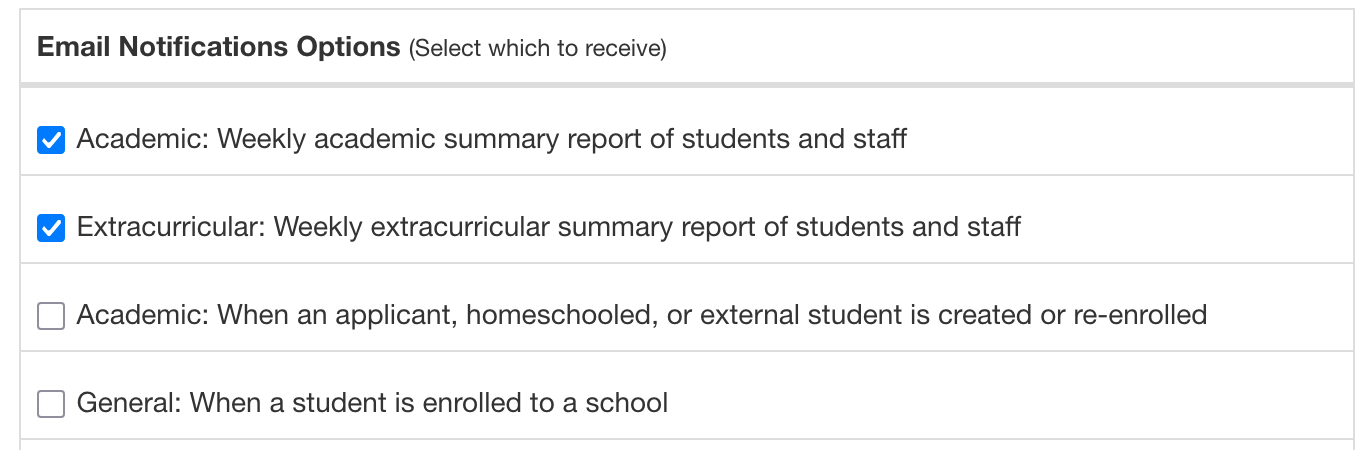
Options will be tailored to your role and the permissions you have at the school or district office. After making your selections, click Update Role to save your changes.
If you have Staff Manager or Super Admin permissions, you can modify the notification options for other staff members. Go to the Manage > Staff page, click the Edit button for a staff member, and follow the same instructions above.